You have 0 items in your cart

If your email campaigns and CRM are living in separate universes, you are essentially flying blind. The email marketing CRM integration setup is the fix that pulls everything together, giving your marketing and sales teams a shared view of every contact, every click, and every conversion. Without it, you are chasing leads through a maze of spreadsheets and copy-pasted data like someone trying to catch a greased pig at a county fair. This guide walks you through exactly what you need, how to set it up, and how to keep it running without pulling your hair out.
Table of Contents
- Key Takeaways
- Prerequisites and tools for email marketing CRM integration setup
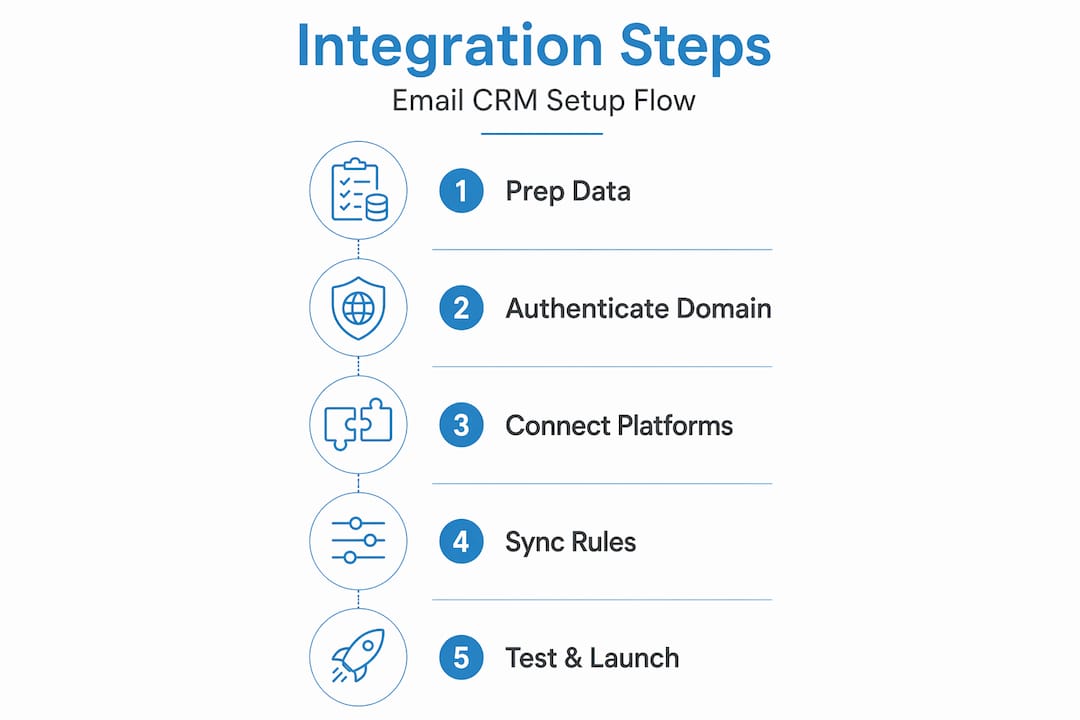
- Step-by-step email marketing CRM integration setup
- Common mistakes and how to fix them
- Measuring success and optimizing your setup
- My honest take on getting this right
- Let Smarter Business take the setup stress off your plate
- FAQ
Key Takeaways
| Point | Details |
|---|---|
| Prep before you connect | Clean your contact list and confirm DNS access before touching any integration settings. |
| Authentication is non-negotiable | Configure DKIM, SPF, and DMARC records or your emails will land in spam, not inboxes. |
| Setup time varies widely | Basic native integrations take 15 to 30 minutes; middleware setups can run 4 to 8 hours. |
| CRM stays in charge | Keep your CRM as the system of record and let the email platform handle sending and reporting. |
| Measure and refine | Track open rates, click rates, and bounce rates to continuously improve your campaigns. |
Prerequisites and tools for email marketing CRM integration setup
Before you connect a single platform, you need to make sure the pieces you are working with can actually talk to each other. Think of it like trying to plug a European adapter into an American outlet. Good intentions, wrong setup.
What you need before you start
The first thing to sort out is whether your CRM and email marketing platform support native integration or whether you will need a middleware tool like Zapier or Make. Native integrations are built directly into the platforms and require minimal technical setup. Middleware tools act as translators between systems that do not speak the same language natively. Zapier offers 9,000+ integrations and is generally the better pick for non-technical teams thanks to its predictable billing structure. Make, on the other hand, suits high-volume operations with someone technical on the team.
Here is a quick comparison of the most common approaches:
| Integration type | Setup time | Best for | Example tools |
|---|---|---|---|
| Native integration | 15 to 30 minutes | Simple, direct connections | Act!, HubSpot, Mailchimp |
| Middleware (basic) | 2 to 4 hours | Platforms without native sync | Zapier, Make |
| Middleware (advanced) | 4 to 8 hours | Complex multi-step workflows | Zapier, Make, custom APIs |
You will also need admin access to both platforms, DNS access to your domain (more on that shortly), and a contact list that is clean and GDPR-compliant. GDPR requires explicit consent with a recorded timestamp and the language used at the point of consent, so if your list was scraped together from a business card pile in 2019, now is the time to sort that out.
The Act! email marketing features page from Smarter Business is a solid starting point if you want to understand how a purpose-built CRM handles these connections before you commit to a setup approach.
Pro Tip: Before starting your integration, run your contact list through a basic hygiene check. Remove duplicates, flag missing fields, and confirm opt-in status. A clean list going in means cleaner data flowing between systems from day one.
Step-by-step email marketing CRM integration setup
Now for the actual work. This is where most people either get it right the first time or spend three weeks wondering why their automation is not firing. Let’s make sure you are in the first camp.
Step 1: Authenticate your sending domain
This is the step most people skip and then wonder why their emails are landing in spam. Proper deliverability requires configuring two DKIM CNAME records, an SPF record, and a DMARC record published to your DNS. DKIM (DomainKeys Identified Mail) signs your outgoing emails so receiving servers can verify they actually came from you. SPF (Sender Policy Framework) tells the world which servers are allowed to send on your behalf. DMARC ties the two together and tells receiving servers what to do if something does not match.

Adding DKIM CNAME records via DNS involves logging into your domain registrar, navigating to DNS settings, and pasting in the values your email platform provides. DNS changes can take up to 48 hours to propagate, so do this first and let it bake while you work on the rest.
Step 2: Connect your platforms
- Log into your CRM and navigate to the integrations or connected apps section.
- Search for your email marketing platform and click to connect.
- Authorize the connection using your email platform credentials.
- Select the contact lists or segments you want to sync.
- Map your data fields. Make sure “First Name” in your CRM maps to “First Name” in your email tool, not to a custom field that says “Contact Given Name.”
- Set your sync direction. Decide whether data flows one way (CRM to email) or both ways (bidirectional sync).
- Save and run a test sync with a small segment of contacts.
Step 3: Configure sync rules and automation triggers
This is where the real power lives. Once your platforms are connected, you can set up rules that update CRM records based on email engagement. For example, if a contact clicks a pricing link in your email, that click can trigger a task in your CRM for a sales rep to follow up. If someone unsubscribes, that status should immediately update in the CRM so no one accidentally calls them about a promotion.
Email engagement data synced into CRM is often delayed, which can limit real-time automation. If your workflows are time-sensitive, consider using native execution within your CRM rather than relying on a third-party sync that runs on a schedule.
| Setup phase | Time estimate | Key action |
|---|---|---|
| Domain authentication | 15 to 30 minutes (plus DNS propagation) | Add DKIM, SPF, DMARC records |
| Platform connection | 15 to 30 minutes | Authorize and map fields |
| Sync rules and automation | 2 to 4 hours | Configure triggers and workflows |
| Middleware setup (if needed) | 4 to 8 hours | Build Zaps or Scenarios |
Pro Tip: Test your integration with a dummy contact before going live. Send a test email, click a link, and check whether the CRM record updates as expected. Catching a misconfigured field mapping at this stage saves hours of cleanup later.
Common mistakes and how to fix them
Getting the connection live is only half the battle. Here is where things tend to go sideways, and what to do when they do.
The deliverability trap
The single biggest mistake people make is assuming the CRM-email connection handles deliverability automatically. It does not. Without custom domain authentication, emails fail alignment and strict DMARC policies will either quarantine or outright reject your messages. You could have the best email copy in the world and it will not matter if it never reaches an inbox.
To verify your DNS records are set up correctly, use a tool like MXToolbox or your email platform’s built-in domain checker. Send a test email to a personal account and check the email headers to confirm DKIM is signing and SPF is passing.
Data sync issues
Partial or delayed syncs are the silent killers of email automation. If your CRM is not receiving engagement data in time, automation triggers misfire or do not fire at all. Here is a quick troubleshooting checklist:
- Check your sync frequency settings. Some integrations default to hourly or daily syncs rather than real-time.
- Confirm that the fields you mapped actually exist in both systems and are not blank.
- Look for error logs in your integration dashboard. Zapier and Make both surface failed tasks clearly.
- Re-authorize the connection if syncing has stopped unexpectedly. Token expiry is a common culprit.
- Verify that your contact list permissions allow the integration to read and write data.
List hygiene and compliance
Engagement-based segmentation improves deliverability by keeping unengaged contacts out of your active sends. If someone has not opened an email in six months, mailing them regularly is actively hurting your sender reputation. Build a suppression list for low-engagement contacts and reactivate them with a dedicated win-back campaign before putting them back in the main flow.
“Your CRM is only as smart as the data you put into it. Garbage in, garbage out.”
Pro Tip: Set up Google Postmaster Tools and your email platform’s health dashboard as a pair. Postmaster shows your domain reputation from Google’s perspective, while your platform dashboard shows bounce and complaint rates. Together, they give you the full picture.
Measuring success and optimizing your setup
Getting the integration running is a milestone. Keeping it performing well is the actual job.
Metrics that matter
Email marketing delivers €36 to €42 ROI per €1 spent when list quality and automation are high. That number drops fast when your data is messy or your automation is misfiring. The metrics to watch closely are:
- Open rate: A consistent drop signals deliverability or subject line problems.
- Click rate: Low clicks on a high-open email means your content or offer is missing the mark.
- Bounce rate: Hard bounces above 2% will damage your sender reputation quickly.
- Unsubscribe rate: Spikes usually point to irrelevant content or over-sending.
Using CRM data to sharpen targeting
Your CRM holds behavioral data that most email platforms simply cannot generate on their own. Purchase history, support ticket volume, deal stage, and last contact date are all signals you can use to build smarter segments. A contact who just closed a deal should get a very different email than one who has been sitting in “proposal sent” for 90 days.
Keeping your CRM as the authoritative system for contact data and using the email platform purely for sending and reporting is the architecture that avoids most sync headaches. Push data from the CRM outward. Pull reporting data back in. Keep the flow directional and intentional.
Pro Tip: Connect your email engagement scoring to your CRM’s lead scoring model. Contacts who consistently open and click should surface to your sales team faster than those who go cold. This single alignment move can cut your lead response time significantly.
My honest take on getting this right
I have seen more email and CRM setups than I care to count, and the pattern is almost always the same. Someone spends a weekend getting the platforms connected, declares victory, and then wonders six months later why the automation feels like it is running on a broken clock.
The truth is that most integration problems are not technical. They are architectural. People treat the email platform as the brain of the operation when it should be the hands. Your CRM should be the system of record. It holds the truth about who your contacts are, where they are in the buying process, and what they have done. The email tool executes. It sends, it tracks, it reports. The moment you start letting the email platform make decisions that belong in the CRM, the whole thing gets messy.
The other lesson I keep coming back to is domain authentication. I have watched businesses send tens of thousands of emails to a black hole because nobody set up DKIM and DMARC properly. It is not glamorous work. It is DNS records and waiting for propagation. But it is the foundation everything else sits on, and skipping it is like building a house on sand.
My recommendation for most small to medium businesses is to start with a native integration if one exists, get the authentication right before sending a single campaign, and resist the urge to build complex automation until the basics are proven. Complexity added to a broken foundation just breaks faster.
— Patrick
Let Smarter Business take the setup stress off your plate
Getting your email marketing and CRM working together properly takes time, technical know-how, and a fair bit of patience. If you would rather spend that time running your business, Smarter Business is built for exactly this situation.

As Act! Certified Consultants, the team at Smarter Business works with small and medium businesses across Ireland to configure, customize, and connect CRM systems that actually perform. From CRM training that gets your team up to speed fast, to custom CRM configuration that maps your exact workflows, the support is practical and hands-on. You can also explore the full range of Act! CRM products to find the right fit for your business size and budget. No guesswork, no generic setups. Just a system that works the way your business does.
FAQ
How long does email marketing CRM integration setup take?
Basic native integrations take 15 to 30 minutes for the initial connection, with sync rules and automation adding 2 to 4 hours. Middleware setups using tools like Zapier or Make typically run 4 to 8 hours depending on complexity.
Why are my emails landing in spam after integrating my CRM?
Missing domain authentication is almost always the cause. Configure DKIM, SPF, and DMARC records in your DNS settings to align your sending domain and pass inbox filters at major email providers.
What is the best approach for how to integrate CRM with email marketing?
Keep your CRM as the system of record for contact data and use your email platform for sending and reporting only. Native integrations work well for most small businesses; middleware tools like Zapier suit more complex multi-platform setups.
Which are the best email CRM tools for small businesses?
Act! CRM with its built-in marketing automation is a strong choice for SMBs, particularly those wanting a single platform for contact management and email campaigns. For businesses already using separate tools, Zapier provides reliable middleware connectivity across thousands of platforms.
How do I fix data sync issues in my CRM email integration?
Check your sync frequency settings, confirm field mappings are correct in both systems, and review error logs in your integration dashboard. Re-authorizing the connection often resolves sync failures caused by expired access tokens.