You have 0 items in your cart

The fastest repeatable path from CRM to polished business report is this: export precisely the fields and date range you need as CSV or XLSX, clean and transform the file, then feed it into Excel, Power BI, Google Looker Studio, or an AI report generator that produces a narrative in under 60 seconds. Automate the export and delivery if the report recurs weekly or monthly.
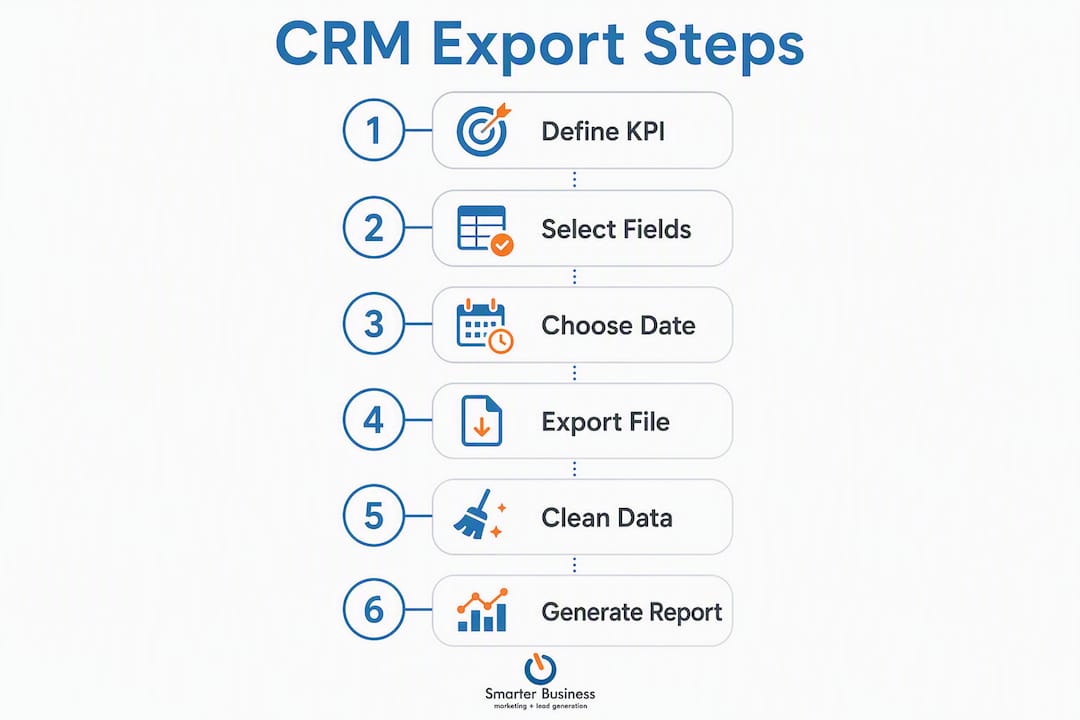
That single workflow covers the vast majority of what business professionals need. Whether you are pulling pipeline data from HubSpot, deal stages from Microsoft Dynamics 365, or contact history from Act! CRM, the underlying recipe stays the same. The platform specifics change; the logic does not.
TL;DR checklist:
- Select the fields and filters you actually need (not everything)
- Confirm you have export permissions before you start
- Run an “Update report” step so the export is not a stale snapshot
- Export as CSV or XLSX (JSON/XML for BI integrations)
- Clean: de-dupe, normalise dates and currency to Euro, remove test records
- Visualise in Excel, Power BI, or Looker Studio
- Add a narrative or use an AI tool to generate the executive summary
- Schedule or share via secure delivery
Smarterbusiness, a certified Act! CRM consultancy, supports SMEs in building exactly this kind of repeatable export and reporting workflow.
Table of Contents
- What is the right order of tasks when you export CRM data for reports?
- How do you export reports as CSV or XLSX from most CRMs?
- How do you export reports from HubSpot step by step?
- How do you export reports from Microsoft Dynamics 365?
- How do you clean exported CRM data before building a report?
- How do you automate CRM exports and schedule report delivery?
- Which tool should you use to turn exported data into a business report?
- What is the GDPR and security checklist for exporting CRM data in the UK?
- Before you export: how do you choose the right analytics approach?
- How do you handle large datasets and keep exports fast?
- What are the most common data formatting problems during export?
- Key takeaways
- Why most CRM reporting problems are actually objective problems
- Smarterbusiness makes CRM reporting work for your business
- Useful sources and further reading
What is the right order of tasks when you export CRM data for reports?
Getting the sequence right matters more than most guides admit. Do it out of order and you end up cleaning data you never needed, or worse, distributing a report built on last month’s figures.
- Define your KPIs and reporting objective. Before you touch the export button, write down the one business question this report must answer. “Where is the pipeline stalling?” is a question. “All contacts” is not.
- Select only the fields that compute those KPIs. Map each KPI to the exact CRM fields it needs. Exporting 80 columns when you need 12 is a recipe for noisy spreadsheets.
- Set date ranges and filters. Apply filters inside the CRM before exporting. Filtering post-export wastes time and invites errors.
- Run the “Update report” step. CRM exports are snapshots of the last saved state. If you skip this, your report reflects yesterday’s data, not today’s.
- Export in the right format. CSV or XLSX for most reporting tools; JSON or XML when feeding a BI platform directly, since machine-readable formats prevent the cell-type errors that break downstream logic.
- Clean and transform. De-dupe, normalise, and remove test records before any visualisation step.
- Visualise and narrate. Build pivot tables, dashboards, or feed the cleaned file to an AI report generator.
- Deliver and schedule. Export as PDF, DOCX, or PPTX and distribute via secure channels. Set up a schedule if this report recurs.
Pro Tip: Store an export manifest alongside every file: record the filename, filters applied, the user who ran the export, and the timestamp. One canonical export template per recurring report means anyone on the team can reproduce it without guessing.
How do you export reports as CSV or XLSX from most CRMs?
Most CRM platforms follow a broadly similar menu path, even when the labels differ. Understanding the pattern means you can navigate a new CRM without a support ticket.

The typical route is: Reports (or Analytics) → run or open the report → Export → choose the output type (Detail, Summary, or Full) → select the format (CSV, XLSX, or PDF) → download.
| Setting | What to check | Why it matters |
|---|---|---|
| Delimiter | Comma (CSV) or tab | Mismatched delimiters break imports into Excel or BI tools |
| Date format | DD/MM/YYYY for UK | Avoids month/day transposition errors in downstream tools |
| Include headers | Always on | Column names are essential for pivot tables and BI connectors |
| Encoding | UTF-8 | Prevents garbled special characters (accents, symbols) |
| Row/record limit | Varies by platform | Many CRMs cap exports at 10,000–50,000 rows per file |
| Association handling | Flattened vs repeated | Related records often repeat the parent row; plan for de-duplication |
| Custom fields | Check inclusion | Some platforms exclude custom or computed fields from standard exports |
Permissions and roles are the most common reason an export fails silently. Most CRMs require a “Report Admin”, “Export Data”, or equivalent privilege. Check your role settings before you start, not after you have built the report. In HubSpot, for example, only users with the correct permissions can export contact or deal data; in Dynamics 365, the export option may be greyed out for standard users without the relevant security role.
Row limits are a practical headache. If your dataset exceeds the platform cap, split the export by date range or use the CRM’s API to pull data in pages. Pagination via API is slower to set up but removes the ceiling entirely.
How do you export reports from HubSpot step by step?
HubSpot’s export paths differ slightly depending on whether you are exporting contacts, deals, or a custom report from the reporting dashboard.
For contacts and deals:
- Go to Contacts (or Deals) in the top navigation.
- Apply your filters and select the properties (columns) you want to include using the “Edit columns” option.
- Click Actions → Export.
- Choose CSV or XLSX and confirm the property selection.
- HubSpot emails the export file to your registered address when it is ready.
For custom reports:
- Navigate to Reports → Reports (the library).
- Open the report you want to export.
- Click the Actions menu (top right) → Export.
- Select the format and download.
A few things HubSpot commonly omits from standard CSV exports: multi-checkbox properties often export as a single concatenated string rather than separate columns, and some computed or formula-based properties do not appear at all. If a field is missing, check whether it is a “calculated property” and consider recreating the logic in Excel post-export.
HubSpot’s export size limit for contact lists is generous for most SMEs, but very large datasets (hundreds of thousands of records) are better handled via the HubSpot API, which supports paginated pulls without a hard row ceiling.
Permissions check: only Super Admins and users with the “Export” permission in their profile can export data. Go to Settings → Users & Teams → select the user → Permissions to verify.
Pro Tip: Set your HubSpot account’s date format and currency display to match UK conventions (DD/MM/YYYY, Euro) in Settings → Account Defaults before running any export. Doing it once at source saves a column-by-column reformat every single time.
How do you export reports from Microsoft Dynamics 365?
Dynamics 365 offers more export format options than most CRMs, which is both a strength and a source of confusion. Knowing which option to pick for which purpose saves a lot of head-scratching.
| Export option | Format | Best used for |
|---|---|---|
| Full Report | Sharing a formatted snapshot with stakeholders | |
| Detail | CSV / Excel | Raw data for pivot tables, BI imports, or further analysis |
| Summary | Excel | Aggregated totals for quick management overviews |
| Visualization | PNG | Capturing a chart as an image for presentations |
| Definition | JSON | Administrators reusing or migrating report configurations |
The step sequence for a standard data export:
- Open the report in Dynamics 365 Reports.
- Click Update report to refresh the underlying data. Skip this and you export a snapshot from whenever the report last ran.
- Select Details (for raw rows) or Summary (for aggregated data).
- Choose your format (CSV, Excel, or PDF).
- Save the file and proceed to your cleaning step.
Scheduled exports in Dynamics 365 are available via add-ons such as Inogic’s Schedule Export, which automates the trigger-and-deliver cycle. For recurring dashboards, connecting Dynamics 365 directly to Power BI via a gateway removes the manual export step entirely and supports near-live data refresh.
Related records in Dynamics 365 often repeat the parent row across multiple columns rather than creating child rows. Plan for this in your cleaning step: you may need to unpivot or flatten those columns before a pivot table will make sense of them.
Pro Tip: Export the report Definition as JSON and store it in your team’s shared drive. When a report needs to be rebuilt after a system update or migration, the JSON definition is your blueprint. Without it, you are recreating the wheel.
How do you clean exported CRM data before building a report?
Raw CRM exports are rarely report-ready. Think of them as rough clay: the shape is there, but you need to work it before anything useful emerges.
- De-duplicate records. Use Excel’s “Remove Duplicates” function or a tool like Insycle to identify and merge duplicate contacts or deals. Duplicates inflate pipeline figures and make trend charts meaningless.
- Normalise date formats. Convert all dates to DD/MM/YYYY (or ISO 8601 for BI tools). A single column with mixed formats will cause pivot tables to group incorrectly.
- Standardise currency to Euro. If your CRM stores values in multiple currencies, convert to Euro before aggregating. Mixed-currency sums are arithmetically wrong.
- Canonicalise dropdown values. “New Business”, “new business”, and “New Biz” are three versions of the same thing. Pick one and replace the others using Find & Replace or a lookup table.
- Trim whitespace and fix encoding. Leading or trailing spaces break VLOOKUP and JOIN operations. Use Excel’s TRIM function or a text editor with regex support.
- Convert text numbers to numeric types. CRM exports frequently store numeric fields as text. Select the column, use “Text to Columns” or VALUE() in Excel to convert.
- Remove test records. Filter for records with names like “Test”, “Demo”, or “AAA” and delete them before any analysis.
- Flatten multi-value fields. Fields that export as “Value1; Value2; Value3” need splitting into separate columns or rows depending on your reporting logic.
Pro Tip: Build a dedicated “export staging” sheet in Excel (or a lightweight Python/Power Query script) that applies the same transforms every time. Repeatable cleaning is the difference between a one-off report and a reliable monthly process.
How do you automate CRM exports and schedule report delivery?
Manual exports are fine for a one-off report. For anything that recurs, automation is the only sane answer. Playing whack-a-mole with monthly exports is a time sink that compounds with every new stakeholder who wants a copy.
Common automation patterns:
- Native scheduled reports: HubSpot and Dynamics 365 both support scheduled email delivery of reports to defined recipients. Simple, no code required, but limited in transformation capability.
- Middleware connectors: Zapier connects CRM triggers (e.g. a new deal closed) to downstream actions (e.g. append a row to a Google Sheet, send a Slack notification). Useful for lightweight, event-driven reporting.
- API polling into a data warehouse: For larger datasets, schedule an API pull into a staging database or data warehouse, then connect your BI tool to that. More setup, but far more control.
- Direct BI connectors: Power BI’s gateway feature connects directly to Dynamics 365 or other CRM sources and refreshes datasets on a schedule without any manual export step.
The critical rule that catches most teams out: scheduled exports capture the report’s last saved state. A refresh trigger must fire immediately before the export runs, or the delivered file will contain stale figures. Build the “Update report” step into every automated workflow as the first action, not an afterthought.
Security and GDPR considerations for scheduled delivery:
- Use SFTP or encrypted links for file transfer. Never email raw CRM exports as unencrypted attachments.
- Restrict the export role to the minimum number of users who genuinely need it.
- Encrypt files at rest if they are stored on shared drives.
- Document every automated export in your Records of Processing Activities (RoPA), particularly if the file lands with a third party.
- Rotate API keys and access credentials on a regular schedule.
Which tool should you use to turn exported data into a business report?
The right tool depends on three things: how often the report recurs, how large the dataset is, and who the audience is. There is no universal answer, but the decision matrix below makes the choice straightforward.
| Tool | Best for | Dataset size | Audience | Output format |
|---|---|---|---|---|
| Excel | Ad-hoc, one-off reports | Small to medium | Internal managers | XLSX, PDF |
| Power BI | Recurring interactive dashboards | Medium to large | Cross-team, executives | Interactive, PDF |
| Google Looker Studio | Web-shared, collaborative reports | Small to medium | External stakeholders | Web, PDF |
| AI generators (e.g. Bricks, ReportMaker) | Fast narrative reports from clean exports | Small to medium | Any | PDF, DOCX, PPTX |
Excel remains the workhorse for ad-hoc CRM data analysis. Pivot tables, VLOOKUP, and Power Query handle most SME reporting needs without any additional licence cost. The limitation is that Excel reports are static: once distributed, they do not update.
Power BI is the right choice when a report needs to refresh automatically and be interactive. Connect it directly to your CRM or to a cleaned export file, build the visuals once, and stakeholders get a live dashboard rather than a PDF attachment. The gateway feature removes the manual export step for Dynamics 365 users entirely.
Google Looker Studio (formerly Data Studio) is free and excellent for reports that need to be shared via a URL rather than a file. It connects to Google Sheets, which can receive CRM exports via Zapier or a direct API push.
AI report generators are the newest option and genuinely useful when speed matters. Tools like Bricks can ingest a cleaned CSV or XLSX and produce a complete structured report, including executive summary, KPI snapshot, and charts, very quickly, with direct export to PDF, DOCX, and PPTX. ReportMaker offers a free tier that accepts CSV/XLSX inputs and returns a formatted PDF without requiring a sign-up. These tools work best when fed clean, well-structured exports rather than raw, messy extracts.
Every business report, regardless of tool, should contain: an executive summary (two to three sentences), a KPI snapshot, at least one trend chart, the top three insights, and one recommended action. That structure works for a board pack and a team standup equally well.
What is the GDPR and security checklist for exporting CRM data in the UK?
Exporting CRM data is a data processing activity under UK GDPR. Treating it as anything less is the kind of oversight that generates ICO enquiries.
Checklist before every export:
- Data minimisation: export only the fields required to answer the reporting question. No fishing expeditions.
- Lawful basis: confirm there is a documented lawful basis for processing and sharing the exported data, particularly if it goes to a third party.
- Pseudonymisation: where the report does not require personally identifiable information, replace names and contact details with reference IDs before distributing.
- Retention rules: define how long exported files are kept and where. An export sitting in someone’s Downloads folder for 18 months is a liability.
- Secure transfer: use SFTP, encrypted email, or a secure file-sharing platform. Plain email attachments are not acceptable for personal data.
- Access control: restrict who can open, edit, or forward the exported file. Use password protection or rights management where available.
- RoPA update: if you schedule automated exports to a third-party tool or recipient, add the activity to your Records of Processing Activities.
Pro Tip: Use encrypted scheduled delivery and rotate access keys quarterly. Keep the export manifest (filename, filters, user, timestamp) as your audit trail. If the ICO ever asks what data left your CRM and when, that manifest is your answer.
Before you export: how do you choose the right analytics approach?
The main cause of poor CRM reporting is not bad data or the wrong tool. It is the absence of a defined reporting objective before anyone touches the export button. Starting with a question rather than a data dump is the single highest-leverage habit you can build.
There are four analytics types, and matching your objective to the right one determines which fields you actually need to export:
- Descriptive analytics answers “what happened?” Use it for sales summaries, contact growth, and activity logs. You need: date fields, status fields, numeric values (deal size, call count).
- Diagnostic analytics answers “why did it happen?” Use it for pipeline stall analysis or churn investigation. You need: deal stage timestamps, rep activity logs, and outcome fields alongside the descriptive fields above.
- Predictive analytics answers “what is likely to happen?” Use it for revenue forecasting or lead scoring. You need: historical outcome data, time-series fields, and ideally a large enough sample for the model to be meaningful.
- Prescriptive analytics answers “what should we do?” Use it for territory planning or resource allocation. You need: the outputs of descriptive and diagnostic analysis plus external benchmarks or targets.
The Smarterbusiness approach to CRM performance reporting starts here: define the KPIs first, then export only the fields required to compute those KPIs. A 12-column export that answers a specific question beats an 80-column dump that answers none.
How do you handle large datasets and keep exports fast?
Large exports have a habit of timing out, hitting row limits, or producing files so unwieldy that Excel grinds to a halt. A few practical habits prevent all three.
Split by date range. Instead of exporting 18 months of data in one go, export quarter by quarter and append the files. Most CRM row limits apply per export, not per report.

Filter aggressively before exporting. Every row you do not need is processing time wasted and a row closer to the platform’s ceiling. Apply status filters, owner filters, and date filters inside the CRM before you click Export.
Use the API for very large datasets. API pulls support pagination, meaning you retrieve records in batches of 100 or 1,000 and stitch them together programmatically. No ceiling, but requires a developer or a middleware tool like Zapier to orchestrate.
Prefer CSV over XLSX for large files. Excel files carry formatting overhead that inflates file size. A 50,000-row CSV is faster to generate, transfer, and import into Power BI than the equivalent XLSX.
Archive, do not accumulate. If your CRM holds years of historical data, consider archiving closed records to a separate database or data warehouse. Reporting on active pipeline from a lean dataset is faster and less error-prone than querying everything at once. Smarterbusiness’s database services include exactly this kind of data architecture work for SMEs whose CRM has grown unwieldy over time.
What are the most common data formatting problems during export?
Formatting gremlins are the silent killers of CRM reports. They hide in plain sight until a pivot table produces nonsense or a chart refuses to render.
Date format chaos is the most frequent offender. A column that mixes DD/MM/YYYY and MM/DD/YYYY will sort incorrectly and group by the wrong period. Fix it at source by setting the CRM’s locale before exporting, then validate the column in Excel using a formula that checks whether the date parses correctly.
Numbers stored as text break SUM, AVERAGE, and every aggregation function. The tell-tale sign is a green triangle in the top-left corner of the cell. Use Excel’s “Convert to Number” prompt or the VALUE() function to fix the entire column in one step.
Encoding errors produce garbled characters (é, ’) wherever the original data contained accents, apostrophes, or special symbols. Always export as UTF-8 and open the file in Excel using “Data → From Text/CSV” with UTF-8 specified, rather than double-clicking the file directly.
Merged or concatenated multi-value fields export as a single string (“Dublin; Cork; Galway”) when the underlying CRM field holds multiple values. Split these using Excel’s “Text to Columns” (delimiter: semicolon) or Power Query’s “Split Column” function before any grouping or filtering.
Blank rows and phantom records appear when CRM records have been soft-deleted or when association records exist without a parent. Filter for blank primary key fields and delete those rows before analysis.
Inconsistent dropdown values (“Closed Won”, “closed-won”, “Won”) are a data governance problem at source, but they surface at export time. A quick COUNTIF across the column reveals the variants; a Find & Replace or a mapping table fixes them.
Key takeaways
Exporting CRM data and turning it into a business report requires a defined objective, the right export format, a clean dataset, and a reporting tool matched to your audience and frequency.
| Point | Details |
|---|---|
| Define the objective first | Map each KPI to the exact CRM fields needed before touching the export button. |
| Run “Update report” before every export | Skipping this step delivers a stale snapshot, not current data. |
| Clean before you visualise | De-dupe, normalise dates to DD/MM/YYYY, standardise currency to Euro, and remove test records. |
| Match the tool to the use case | Excel for ad-hoc; Power BI for recurring dashboards; AI generators for fast narrative outputs. |
| Smarterbusiness for repeatable workflows | Smarterbusiness designs custom export templates, scheduled delivery, and Act! CRM reporting setups for SMEs. |
Why most CRM reporting problems are actually objective problems
The conventional wisdom says bad CRM reports come from bad data. That is only half right. The other half, and arguably the more fixable half, is that most teams export data before they have decided what question the report is supposed to answer.
The result is a spreadsheet with 60 columns and no story. Someone highlights a few numbers in yellow, pastes it into an email, and calls it a report. The recipient reads it, nods, and files it away. Nothing changes.
The four analytics types (descriptive, diagnostic, predictive, prescriptive) are not academic categories. They are a forcing function. When you have to label your report as one of the four, you are forced to articulate the question, which immediately tells you which fields to export and which to ignore. A diagnostic report on pipeline stall needs deal stage timestamps and rep activity logs. It does not need the contact’s postal code or their industry tag.
The second thing most guides underplay is the refresh problem. Automated scheduled exports sound like a solved problem until a stakeholder notices the figures are three weeks old. The “Update report” step before every export is not optional; it is the entire point of scheduling. Build it as the first action in every automated workflow, not a note in the documentation.
Act! CRM, implemented properly through a consultancy like Smarterbusiness, gives SMEs a reporting structure where fields, dropdowns, and custom tables are designed around the questions the business actually asks. That is a different proposition from buying a licence and hoping the default fields match your workflow.
Smarterbusiness makes CRM reporting work for your business
Plenty of SMEs have a CRM full of data and a reporting process that still relies on someone manually copying figures into a spreadsheet every month. The gap between “we have a CRM” and “we have reliable, repeatable business reports” is almost always a configuration and workflow problem, not a data problem.

Smarterbusiness designs custom CRM reporting setups for SMEs using Act! CRM, including field mapping, export templates, scheduled delivery, and data hygiene processes that run without manual intervention. The difference is that the system is built around how your business actually works, not around a default template that was designed for a different industry.
Services available include Act! CRM training for teams who want to build their own export and reporting skills, Act! CRM add-ons that extend native reporting capabilities, database architecture for businesses whose data has outgrown a basic setup, and full CRM consultancy engagements for organisations that want a consultant to design and implement the whole workflow. Book a discovery call with Smarterbusiness to find out which of those fits your situation.
Useful sources and further reading
A curated list of the primary sources and vendor documentation referenced throughout this article.
- Exporting reports — NexJ CRM documentation: Covers export format options (Full, Detail, Summary, Visualization, Definition/JSON), the snapshot behaviour of scheduled exports, and the importance of the “Update report” trigger. Directly relevant to Dynamics 365-style export workflows.
- Microsoft Power BI and Copilot AI — POW IT UP: Covers how Power BI connects directly to CRM sources via gateways for near-live dashboard refresh, removing the need for manual exports in recurring reporting workflows.
- CRM Analytics: A Guide to Customer and Data Analysis — Jetpack CRM: Broad overview of how CRM analytics turns raw customer data into visual insights; useful background for teams new to structured CRM reporting.
- AI Report Generation — Aros Platforms: Partner content covering enterprise AI-driven report generation options for organisations with more complex reporting requirements.