You have 0 items in your cart

User roles control which features a person can use, from editing deals to exporting a full contact list, while record-level access controls which specific records they can actually see. Before you do anything else, check who holds Administrator or Manager roles in your system and confirm what your default record visibility is set to. If you have never looked, now is the moment: in Act! Cloud, getting this wrong is a bit like handing every staff member a master key and hoping nobody wanders into the filing cabinet marked “private”.
TL;DR:
- Act! Cloud offers six roles; permissions accumulate across roles and team memberships, so review combined access and grant export, delete, API, or marketing rights sparingly.
- Private records remain visible only to their Record Manager, even to Administrators; use Limited access and teams for sensitive accounts that multiple people need.
- Before activating accounts, match roles to actual duties, check effective permissions, confirm license counts and multi factor authentication, and assign the right teams.
- Test automation, reports, and connectors under the account that will run them; restricted access can hide records or cause workflows to fail silently.
- Review roles, team memberships, temporary grants, and dormant accounts regularly; export and delete rights deserve particular scrutiny because they can expose or remove data.
Table of Contents
- Standard CRM roles and what each permits
- Record visibility: public, private and limited access, and the role of teams
- Step-by-step: adding users, assigning roles and setting up teams
- Role design rules, audit checklist and how to avoid permission bloat
- How we map roles to workflows
- Examples of typical user role setups in SMEs using Act! CRM
- Impact of user roles on CRM automation and reporting accessibility
- Troubleshooting common issues with user role permissions
- How user roles integrate with third-party add-ons or AI connectors
- What most CRM admins get wrong about roles
- Services to help: role design, training, support and audits
- FAQ
- Sources
Standard CRM roles and what each permits
Think of CRM roles as job titles for your database. Each one comes with a set of tools, and some come with a lot more reach than others. Act! Cloud defines six security roles, and matching the right one to the right person is the single most useful thing an administrator can do in an afternoon.
- Administrator: full control over users, settings and data; best reserved for one or two trusted people, not an entire management team.
- Manager: broad access to records and reporting without the ability to change system-wide settings; suits team leads who need oversight without the keys to the whole building.
- Standard: everyday access for sales or support staff who create and update records but should not be restructuring the database.
- Restricted: a narrower version of Standard, often used for staff who only touch a slice of the workflow.
- Browse: read-only access, useful for auditors, trainees or anyone who needs visibility without edit rights.
- System Manager: technical administration without necessarily holding every data permission, handy for IT support staff.
Permissions are cumulative. If someone holds two roles, or belongs to multiple teams, their effective access is the combined total of everything assigned to them, which is exactly how permission creep sneaks in unnoticed.
On top of the base roles, Act! Cloud lets you grant specific additional permissions to individual users, such as exporting to Excel, deleting records, using the Web API, or administering marketing automation. These exceptions are where most systems quietly drift out of control, so grant them sparingly and note why each one exists.
Record visibility: public, private and limited access, and the role of teams
Roles decide what a person can do. Record-level access decides what they can see, and the two work independently of each other. Act! Cloud recognises three visibility levels, and misunderstanding them is one of the quickest ways to either lock out people who need data or expose data that should stay hidden.
- Public is the default for new records: everyone with suitable role permissions can see them, which suits most contacts and general company records.
- Private restricts a record to its Record Manager only, and this is enforced strictly: even an Administrator cannot open a Private record unless they are that Record Manager.
- Limited restricts visibility to named users or teams, which is the setting most businesses actually need for sensitive accounts, HR-related contacts or commission-linked opportunities.
That Private rule catches a lot of administrators by surprise. It feels counterintuitive that the person with the most system power can be shut out of a single record, but that is precisely the point of record-level security: it is enforced at the record, not inherited from a role.
Teams make Limited access manageable at scale. Rather than ticking individual names on every sensitive record, you assign a team once and manage membership centrally, which saves considerable manual upkeep compared with setting exceptions record by record.
Step-by-step: adding users, assigning roles and setting up teams
Adding a new user should never be a five-minute, tick-a-box exercise. It is where most permission problems are born. Act! Cloud’s Manage Account Console gives administrators one place to add users, change roles, reset passwords, manage multi-factor authentication and control access to additional features, so there is no excuse for doing it piecemeal.
- Open the Manage Account Console and select Add User, entering the person’s details and licence type.
- Choose the security role that matches their actual job function, not the role that is easiest to copy from a colleague.
- Assign the user to the relevant team or teams so that Limited-access records reach the right people automatically.
- Set startup preferences, including the default record access level for anything that user creates.
- Save, then review the user’s effective permissions summary before confirming the account is live.
Changing a role later follows the same console, but check three things afterwards: effective permissions actually reflect the new role, licence counts still match your subscription, and multi-factor authentication is still enforced for that account.
Browse-level or non-licenced accounts suit auditors and trainees who need to see the system without editing it. Consultant or system manager accounts should be reviewed on a schedule, not left active indefinitely once a project ends.
Pro Tip: After any role change, log in as that user (or review their permissions summary) before telling them the change is complete.
Role design rules, audit checklist and how to avoid permission bloat
Start with the standard roles Act! Cloud ships with, and only layer on custom permissions where your workflow genuinely demands it. Building every role from scratch turns a tidy system into a maintenance headache within a year.
Because permissions accumulate across roles and team memberships, a short audit catches problems long before they become expensive ones.
- Review every role assignment against the person’s current job, not the job they had when the account was created.
- Flag any account holding multiple roles or team memberships and confirm the combination is intentional.
- Deactivate unused accounts promptly rather than leaving them dormant with live access.
- Check recent role changes and any emergency or temporary access grants to confirm they were reverted.
Pro Tip: Create a sample test user with a given role and log in as them once a quarter. Seeing the system through their eyes catches permission mistakes faster than reading a settings list ever will.
Document every change with a date and reason. A one-line audit log turns “who gave them that access?” from a mystery into a two-second lookup.
How we map roles to workflows
Our team has deep experience in sales, marketing and operations, not just software deployment, and that distinction matters when it comes to roles. A role structure copied from a generic template rarely matches how a real sales team, support desk or accounts function actually works day to day.
Our approach starts with the client’s processes, not the software defaults. We map who approves what, who owns which accounts, and where sensitive data genuinely needs locking down, then build from Act!’s standard roles outward, adding custom permissions only where the business case is clear. Training follows immediately after setup, because a correctly configured role is only useful if the person using it understands what they can and cannot do.
User roles are a reflection of how a business actually runs, not a technical afterthought bolted on after the database is built.
— Patrick Lennon
Examples of typical user role setups in SMEs using Act! CRM
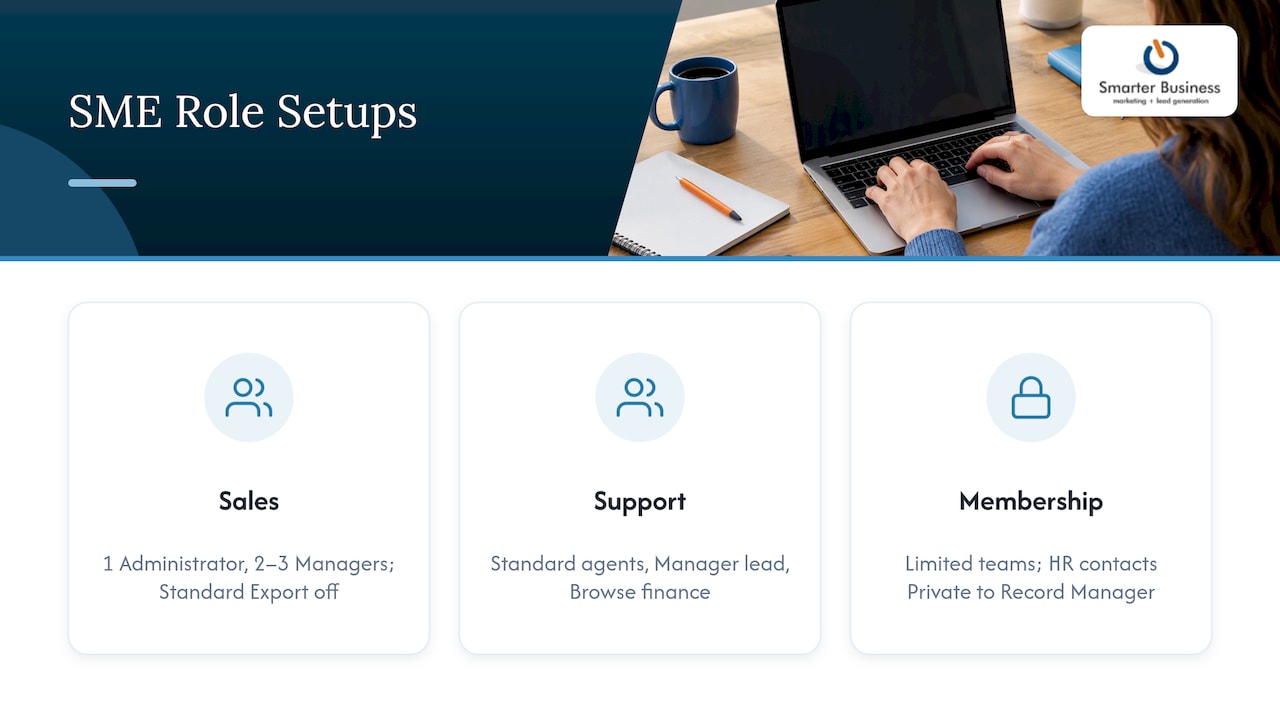
A typical small sales team might run with one Administrator (often the operations manager), two or three Managers overseeing sales pods, and the rest of the team on Standard roles with Export permission switched off to stop client lists leaving the building on a memory stick.
A support desk often looks different: Standard roles for agents handling tickets, a Manager role for the team lead who needs reporting access, and a Browse account for the finance person who checks invoice status but never touches a record.
Membership organisations and NGOs frequently lean on Limited record access combined with teams, so that a fundraising team sees donor records relevant to their patch while HR-sensitive contacts stay Private to a named Record Manager. In each case, the role names stay the same; what changes is which permissions and teams sit behind them, which is exactly why copying another company’s setup wholesale rarely works.
Impact of user roles on CRM automation and reporting accessibility
Automation and reporting inherit whatever access the underlying role and record settings allow, which means a workflow built by an Administrator can silently fail for a Standard user if a step relies on a permission they do not hold. If a report pulls from Private records, a Manager running that report sees gaps rather than an error message, which can look like missing data when it is actually a visibility restriction doing its job.
Marketing automation permissions sit in the same bracket. Granting AMA admin rights to the wrong role lets someone launch email campaigns they were never meant to control, while withholding it from the right person stalls a campaign at the worst possible moment. Before building any automated workflow or scheduled report, confirm the role running it has access to every record and field the process touches, not just the fields visible on the screen where you built it.
Troubleshooting common issues with user role permissions
The most common complaint is “I can’t see a record that should be there”, which almost always traces back to Private visibility or a missing team assignment rather than a software fault. Check the Record Manager field first; if it belongs to someone else and the record is Private, no role change will fix it, only reassigning the record or adding the user as Record Manager will.
The second most common issue is the opposite: someone sees far more than they should, usually because they hold a leftover role from a previous position or sit in a team they no longer need. Export and delete permissions are the ones to check most carefully here, since they do real damage if misassigned.
Field-level problems often get mistaken for role problems. If someone cannot edit a custom field, check field security settings before touching their role, and when editing fields directly, log other users out first to avoid data integrity issues during the change.
How user roles integrate with third-party add-ons or AI connectors
Add-ons and AI connectors generally inherit the permissions of the account they run under, so a connector authenticated as a Standard user can only reach what that Standard role and that user’s record access allow. This is useful: it means you do not need a separate permission system for every integration, but it also means a poorly scoped connector account can either break halfway through a task or, worse, pull data it was never meant to touch.
Shared inbox and team communication tools follow the same logic. Where several people manage one inbox or shared record set, the same team-based thinking that governs Limited record access applies to shared inbox workflows, with permissions set at the team level rather than repeated for each person. The practical rule for any connector, AI-driven or otherwise, is to create it a dedicated account with the narrowest role and team assignment that still lets it do its job, then audit that account on the same schedule as your human users.
What most CRM admins get wrong about roles
Most guidance on CRM roles treats the topic as a one-time setup task: pick a role, assign it, move on. That is the part that is overrated. The real risk is not the initial assignment, it is the slow accumulation of extra permissions, team memberships and forgotten exceptions that nobody revisits once the system is live.
The conventional advice also tends to focus heavily on the Administrator role, as if getting that one right solves everything. In practice, most damage comes from the Standard and Manager tiers, where export, delete and custom field permissions get handed out informally because someone asked nicely, not because the job required it.
If you take one thing from this guide, prioritise the audit over the initial build. A role structure that looked sensible on day one can look nothing like it twelve months later, and the businesses that catch this early are the ones running a short, scheduled review rather than waiting for a data mishap to force the question.
Services to help: role design, training, support and audits
Getting role structure right once saves a lot of untangling later, and that is where a focused consulting engagement earns its keep rather than another round of trial and error with settings menus. We build role structures around how your business actually operates, not around a generic template, then train your team to use them properly.
- CRM customisation to align roles, teams and record access with your real workflows.
- CRM training for administrators and end users, so role changes stick instead of causing confusion.
- Ongoing support and permission audits to catch accumulation before it becomes a problem.
- Act! licence and pricing guidance so your role structure matches the subscription tier you actually need.

If your current role setup feels like it grew by accident rather than by design, get in touch and we will walk through it with you.
FAQ
What are user roles?
User roles are the permission sets that determine which features, actions and settings a person can access within a system. In Act! Cloud, six defined security roles control feature access, while separate record-level settings control which specific records a user can view.
Is Excel a CRM?
Excel is a spreadsheet tool, not a CRM. It can hold contact lists and basic notes, but it has no concept of user roles, record-level security or automated workflows, which means anyone with the file can see and edit everything in it.
What are the security roles in Dynamics 365?
This article covers Act! Cloud’s security model specifically, which defines six distinct roles controlling feature access alongside separate record-level visibility settings. Other CRM platforms use different role names and structures, so check the relevant platform’s own documentation for its exact role definitions.
Are CRM and BPO the same?
No. A CRM is software for managing customer records, roles and workflows, while a BPO (business process outsourcing) is a service arrangement where an external company handles a business function on your behalf. A business can use a CRM internally, outsource work to a BPO, or do both without the two ever overlapping.
How do I assign CRM roles correctly?
Match each role to the person’s actual job function using the system’s built-in roles first, assign them to the relevant team for record access, and add custom permissions such as export or delete only where the role genuinely requires them. Review the assignment’s effective permissions before confirming the account is active, and recheck it on a regular audit schedule.