You have 0 items in your cart

Yes, Act! integrates with Microsoft Outlook: use the Online Email Integration if you run Act! Cloud, or the downloadable Outlook integration if you run Act! on the desktop. Both routes sync contacts, calendars and email history, but each has its own install steps and one shared catch: you need Classic Outlook for Windows and a supported Act! version for either to work properly.
TL;DR:
- The online integration uses API connection with Microsoft 365, requiring no local install but only compatible with Classic Outlook on Windows.
- Desktop users must install a Windows add-in with administrator rights, which only works on the traditional Outlook client, not the New Outlook app.
- Correct setup depends on verifying Act! version, Office build, and Outlook type, with most issues arising from incompatible Outlook versions.
- Recommended initial steps include testing sync on a small scale and confirming permissions before rolling out to prevent duplicates and conflicts.
- Most small teams should start with one-way sync from Act! and gradually move to two-way, adjusting settings based on workflow and conflict resolution preferences.
Table of Contents
- Which integration path applies to your Act! deployment?
- How to set up the Online Email Integration in Act! Cloud
- How to install the downloadable Outlook integration for desktop Act!
- Using the Act! sidebar and Outlook ribbon in daily work
- Sync preferences, scheduling and avoiding duplicates
- Compatibility and gotchas you need to check first
- Our implementation checklist for getting this right first time
- Why we start with workflows, not default settings
- Get your Act! and Outlook integration set up properly
- FAQ
- Sources
Which integration path applies to your Act! deployment?
Before you touch a single setting, work out which version of Act! you are actually running. It sounds obvious, but we see this mix-up constantly: someone assumes they are on Act! Cloud because they access Act! through a browser, when really their admin has just published a desktop database to the web. Check under Help, About Act!, or ask whoever manages your subscription. If you are on Act! Premium Cloud (sometimes called Premium for Web), you will use the Online Email Integration. If you are on Act! Premium Desktop, you will install the downloadable add-in instead.
The two routes behave differently under the bonnet. The online integration talks to Microsoft 365 through an API connection, so there is nothing to install locally beyond signing in. The downloadable integration is a proper Windows add-in that sits inside Outlook itself, which means it needs local administrator rights to install and depends on the classic, desktop version of Outlook rather than the newer, lighter New Outlook app.
Before you start either process, confirm three things:
- You hold an active Act! subscription with Outlook integration included in your plan.
- Your Office and Act! versions appear together on the Act! compatibility matrix.
- You, or your IT administrator, have local admin rights on the machine if you are installing the desktop add-in.
Get these right first and the rest of the setup is mostly clicking through sensible defaults.
How to set up the Online Email Integration in Act! Cloud
If you are on Act! Premium Cloud, the Online Email Integration connects your Microsoft account directly, no download required. Here is the sequence:
- Open Act! and go to Tools, then Email/Calendar Tools, then Sync Contacts, Email and Calendar.
- Choose Microsoft as your account type and sign in with your Microsoft 365 credentials when prompted.
- Grant the permissions Act! requests. These cover reading your mailbox, contacts and calendar, which is exactly what the sync needs to function.
- Decide which of the three sync toggles you want switched on.
- Set your sync range, folder selection and privacy preference.
- Save your settings and let the first sync run.
The three toggles are worth understanding properly rather than ticking blindly, because Act! support’s own walkthrough treats each as a separate decision:
Record emails to contact history keeps a running log of correspondence against each matching contact. This is the one most teams want switched on, since it is the whole point of linking the two systems in the first place.
One-time contacts import pulls your Outlook contacts into Act! once, rather than keeping the two lists in permanent lockstep. Useful if you want a clean starting point without ongoing duplication risk.
Two-way calendar sync keeps appointments moving in both directions, so a meeting booked in Act! appears in Outlook and vice versa.
For sync range, you can pull in up to 12 months of historical email and calendar data, which the Act! Online Email Integration setup guide confirms counts from the first day of your selected month. If you need sent mail recorded against contact history, make sure your Sent folder is included in the folder selection; it is easy to assume Act! captures sent items automatically, and it is one of the most common reasons teams think the integration is “missing” emails.
Decide early whether you want private emails recorded at all, since mixing personal and business correspondence into shared contact history tends to cause more friction than it saves.
Pro Tip: Run a small test sync on one mailbox first. If the sync range or folder settings are wrong, you will want to know before they apply across your whole team.
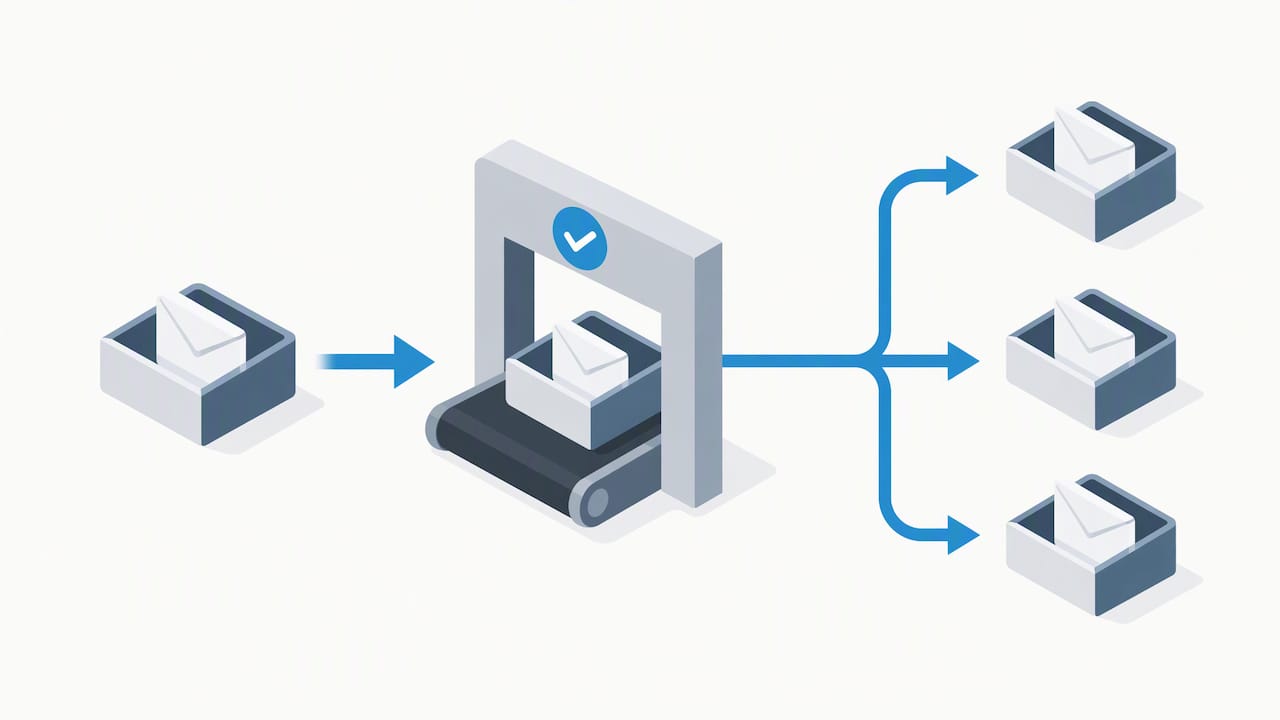
Once setup finishes, open a contact record and check that recent emails and any synced calendar entries have actually appeared. That five-minute check saves a much longer troubleshooting session later.
How to install the downloadable Outlook integration for desktop Act!
Desktop users do not get the API-based connection, they get a proper add-in that lives inside Outlook. The installation is slightly more hands-on, but the payoff is a dedicated Act! tab inside Outlook’s ribbon with one-click contact and activity tools.
- In Act!, go to Tools, then Email/Calendar Tools, and select the option to download the Outlook integration.
- Run the installer with local administrator rights. Without elevated permissions, the add-in will fail to register properly inside Outlook, which is the single most common support call we field on this step.
- Open Act! Preferences and set Outlook as your default email client.
- Add your Act! database as an Outlook address book, so Act! contacts are searchable directly from Outlook’s own address picker.
- Restart Outlook and confirm the Act! tab appears in the ribbon.
Once installed, two sets of options need attention: Auto Attach and Synchronize.
Auto Attach controls how much detail gets recorded when an email matches a contact, and Act!’s own documentation lists four levels to choose from:
- None, if you want to attach emails manually only.
- Date, time and subject, a lightweight audit trail.
- Date, time, subject and message, which keeps the full email body in history.
- Email as an attachment, which stores the whole message as a file against the contact.
Users can override the default per email when composing, which matters for anything genuinely sensitive that should not land in a shared history.
Synchronize Contacts and Calendar is the other configuration screen, and it opens a small preferences file covering two tabs. You will choose between one-way sync, where Act! is the master record, and two-way sync, where either system can update the other. For most small teams, one-way from Act! to Outlook avoids the conflict-resolution headaches that two-way sync can introduce when two people edit the same contact. You can also restrict the sync to specific Act! groups rather than your entire database, and set it to run automatically on a schedule rather than only when triggered manually.
Using the Act! sidebar and Outlook ribbon in daily work
Once installed, the integration earns its keep through small, repeated actions rather than one big migration. The Act! Sidebar for Outlook sits alongside your inbox and matches whichever email is open against your Act! database by email address. When there is no match, it offers a straightforward prompt to create a new contact on the spot, so you are not forever switching between Outlook and Act! just to log someone new.
A few features worth building into your routine:
- Attach to Contacts suits a single email you want logged against one record, with a quick confirmation before it saves.
- Quick Attach is better suited to backfilling a run of older emails against a contact in one pass, rather than one at a time.
- Create Activity opens a new Act! task or call straight from an email, and pulls in attendees automatically from any contacts matched in the message.
- Address Book lets you search and edit Act! contact details from inside Outlook, without switching windows at all.
The sidebar can be resized and refreshed on demand, and history or notes appear read-only, so you get context without risking an accidental edit mid-email. It is a small interface, but it removes a surprising amount of the friction that usually causes CRM data to lag behind reality.
Sync preferences, scheduling and avoiding duplicates
Getting the integration installed is the easy part. Keeping it predictable over months of use is where most admin time actually goes. The synchronisation preferences window offers several automatic scheduling patterns, including daily, every set number of minutes, on Outlook startup, in real time, or manual only.
For a small team, a schedule of every 15 to 30 minutes tends to strike the right balance between freshness and system load. Real-time sync sounds appealing but can surface conflicts faster than anyone has time to resolve them.
A short checklist before you flip the switch for your whole team:
- Confirm each user’s Outlook permissions and local admin rights are in place before rollout.
- Make sure everyone is running Classic Outlook for Windows, not the New Outlook app.
- Disable desktop sync for any user who is also using the downloadable integration, since running both at once is the single most common cause of duplicate contacts and calendar entries.
- Decide your conflict resolution rule in advance: one-way sync from Act! avoids most update conflicts; two-way needs a clear policy for who “wins” when both systems change a record.
Pro Tip: If duplicates start appearing, check first whether two sync paths are running on the same user account before assuming the settings themselves are wrong.
Compatibility and gotchas you need to check first
The New Outlook for Windows does not support COM or VSTO add-ins, which is exactly the technology the downloadable Act! integration depends on. If your Outlook has been auto-upgraded to the New Outlook, the Act! ribbon simply will not appear, no matter how carefully you followed the install steps. The fix is to revert to Classic Outlook for Windows, or switch to the Online Email Integration if you are eligible for Act! Cloud.
Office and Act! versions need checking together too, not separately. Act! Cloud’s web service integration is only supported from Act! version 20.1 onwards, and older Act! releases have known gaps with Click-to-Run installations and 64-bit Office builds.
Before you proceed with any install, check:
- Whether your Outlook is Click-to-Run or an MSI install, since this affects add-in compatibility.
- Whether your Office build is 32-bit or 64-bit.
- Whether your specific Act! version appears on the current compatibility matrix for your Office release.
Our implementation checklist for getting this right first time
When we take on an Act! and Outlook integration for a client, the first job is never technical and often starts with CRM implementation services to ensure a smooth project scope and integration process. It is working out whether the business is running Act! Cloud or a desktop database, because that single fact decides every step after it. Get it wrong and you can lose a half day to an installer that was never going to work on that setup.
From there, our defaults lean cautious rather than clever:
- Selective contact sync by group, rather than syncing an entire database, to keep the integration manageable as the team grows.
- One-way sync as the starting point for most small teams, moving to two-way only once everyone understands what that means for conflicting edits.
- Careful separation of public and private email recording, agreed with the client before go-live rather than discovered afterwards.
- A test account and a small pilot group before rolling the integration out to everyone, so any folder, permission or version issue surfaces early.
Running the installer with elevated rights, confirming group-based contact selection and checking a genuine test sync before sign-off are not glamorous tasks, but they are the difference between an integration that quietly works and one that generates a steady trickle of support tickets for months.
Why we start with workflows, not default settings
After decades in sales, marketing and operations, long before any of it involved CRM software, I have watched enough rollouts go sideways to know the technical install is rarely the hard part. The hard part is matching the sync settings to how a team actually works, not how the software assumes they work.
Teams that get a workflow-first setup tend to see faster adoption and far fewer duplicate records, because the defaults already reflect their reporting structure rather than a generic template. The payoff is usually simple: people can see their calendar and their contact history in one place within days, not weeks, and they stop quietly reverting to spreadsheets on the side.
— Patrick Lennon
Get your Act! and Outlook integration set up properly

Reading through install steps is one thing. Having someone run the installer with the right permissions, choose sensible sync defaults for your team and test it properly before anyone relies on it is another. That is the gap we close. We handle the full implementation: Act! implementation, configuration and training, plus ongoing support once the integration is live.
If you already know which Act! plan you need, the Act! CRM pricing page lists current plans, and the Act Premium Cloud pricing page covers the Cloud options this integration applies to directly.
- Scoping calls to confirm whether Cloud or desktop integration fits your setup.
- Installation and sync configuration.
- Training sessions so your team actually uses the sidebar and ribbon tools day to day.
Get in touch for a scoping call, or book a training session through our services page.
FAQ
Can I integrate my CRM with Outlook?
Most established CRM platforms, including Act!, offer some form of Outlook integration, usually through either a cloud-based email connection or a downloadable add-in. The exact method depends on both your CRM’s deployment type and which Outlook version you run, so checking your provider’s own compatibility documentation first saves time.
How do I use Microsoft Outlook as a CRM?
Outlook alone lacks dedicated contact history, pipeline tracking and reporting, so most businesses pair it with a proper CRM rather than replacing one with the other. Tools like the Act! sidebar bring CRM context into Outlook itself, which gives you CRM-style visibility without leaving your inbox.
Can I integrate Outlook with Dynamics 365?
Dynamics 365 is a Microsoft product and ships with its own native Outlook integration, which differs from Act!’s approach since both products come from the same vendor. If you are choosing between CRM platforms specifically for Outlook compatibility, it is worth comparing each vendor’s own integration documentation rather than assuming they work the same way.
How do I integrate Outlook with Act!?
Act! Cloud users connect through the Online Email Integration, signing in with a Microsoft account and choosing which of email recording, contact import and calendar sync to enable. Desktop users instead download and install the Outlook integration add-in, which requires local admin rights and Classic Outlook for Windows.
Does Act! work with the New Outlook app?
No, the New Outlook for Windows does not support the COM and VSTO add-in technology that Act!’s downloadable integration relies on, according to the Act! compatibility matrix. You will need to revert to Classic Outlook, or use the Online Email Integration if your subscription is Act! Cloud.
Sources
- How to set up the Online Email Integration with Act! Cloud
- Act! compatibility matrix — Microsoft Office integration