You have 0 items in your cart

Act! databases run on Microsoft SQL Server, and every customisation decision has to work within that engine, not around it. Editing base tables directly is unsupported and risky; the correct path is Act!’s own configuration tools, the SDK, the Web API, and the OLE DB provider for reporting. Get that one distinction right and everything else in this guide falls into place.
TL;DR:
- Copying only the .PAD file as a backup is risky because the real data resides in the .ADF and .ALF files, which must all be restored together.
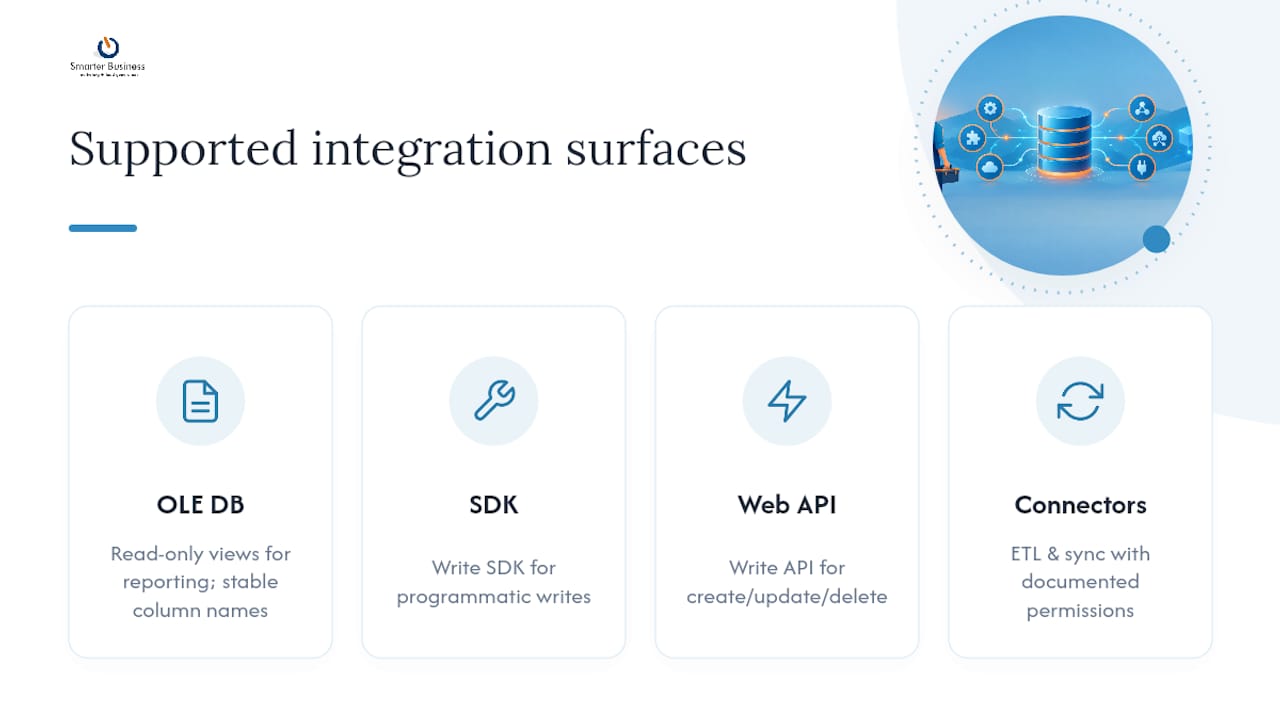
- Act!’s supported integration surfaces are the SDK, Web API, OLE DB provider, and connectors; writing directly to base tables is unsupported and risky.
- Custom fields and tables should be planned with a clear business need, a detailed field dictionary, and consistent naming conventions to ensure maintainability.
- Building reports against provider views helps prevent breakage caused by field renames, as these views preserve underlying column names regardless of admin changes.
- Missing any part of a complete database restore, such as supplemental files or connector configs, can result in dysfunctional migrations or integrations.
Table of Contents
- What actually composes an Act! CRM database structure
- Where you’re allowed to build: OLE DB, SDK, Web API and connectors
- Building a schema that won’t collapse under its own custom fields
- Reporting that survives a field rename
- The backup and migration checklist most teams skip
- Getting integrations to behave: views, sync rules and conflict handling
- How Smarter Business approaches Act! database design in practice
- Where customisation stops paying off
- Get your Act! database designed properly from the start
- Sources
- FAQ
What actually composes an Act! CRM database structure
An Act! database is not one file. It is a small family of files that all have to travel together, and treating any single piece as “the database” is the fastest way to lose data during a migration.
The core components are:
- .PAD file: a pointer file that tells the Act! application where to find the actual database on the SQL Server instance.
- .ADF file: the primary data file, holding contacts, companies, activities, opportunities and everything else you’d recognise as CRM data.
- .ALF file: the SQL transaction log, tracking every change made to the .ADF so the database can recover cleanly after a crash.
- Supplemental database-files folder: layouts, templates, custom reports, and attachments that sit outside the SQL data itself but are essential to a working system.
Copying only the .PAD file and calling it a backup is a genuinely common mistake, because the .PAD is just a shortcut. The real data lives in the .ADF and .ALF, and the files that compose an Act! database must all be captured together, alongside the supplemental folder, or you’ll restore a database with no attachments, no custom layouts, and a lot of confused users. Default installs typically place these under the SQL Server data directory and a separate Act! data path; check both, check encryption settings on the SA account, and confirm the service account has the file permissions it needs before you touch anything.
Where you’re allowed to build: OLE DB, SDK, Web API and connectors
Here’s the part that trips up a lot of technically capable people: knowing SQL Server well enough to write a clever query against the base tables doesn’t mean you should. Act!’s licensing and support model draws a hard line around four supported surfaces, and each one does a different job.
The OLE DB Provider 2.0 is your reporting and business intelligence layer. It exposes read-only views for Contacts, Companies, Activities, Histories, Notes, Opportunities and any sub-entities added through the SDK. Crucially, when an administrator renames a field in Define Fields, the OLE DB provider keeps the underlying column name stable. That single fact solves a problem that would otherwise break every report you’ve built the moment someone renames “Lead Source” to “Referral Channel”.
The Act! SDK and Web API are the supported write paths. If an integration needs to create a contact, update an opportunity stage, or delete a stale activity, this is where that logic belongs, not a direct INSERT statement against a base table.
Third-party connectors follow the same discipline. Jitterbit’s Act! integration, for example, models entities as relational views for ETL and synchronisation, and it explicitly documents which entities support create, update, delete or query operations rather than assuming universal write access.
Pro Tip: Before building any integration, check the connector’s own documentation for which entities are read-only and which support writes. Assuming symmetrical access across every entity is one of the most common causes of failed sync jobs.
Building a schema that won’t collapse under its own custom fields
Act! gives you Define Fields and supported custom tables for extending the data model. That toolset exists precisely so you never need to open SQL Server Management Studio and add a column yourself, because doing so can void your support agreement and, worse, breaks silently the next time you apply a patch.
A sound approach follows a repeatable sequence:
- Map the business requirement first. Work out what the field or table needs to capture, who owns it, and which reports will consume it, before you create anything in Define Fields.
- Build a field dictionary. Record the business label, the provider column name, the datatype, any allowed values or picklists, the field owner, and every downstream report that touches it. This single document is what saves you six months later when someone asks “what does this field actually mean?”
- Apply naming conventions early. Consistent prefixes for custom tables and fields make the schema legible to the next developer, and they stop duplicate fields creeping in because nobody could tell “Region” from “Sales Region” from “Territory”.
- Index deliberately. Custom tables that will be queried heavily in reports need thought given to indexing, not an assumption that Act! will handle it invisibly.
- Set a cap on custom-field sprawl. Every additional field is a maintenance cost. Review unused fields periodically and retire what nobody queries.
Underneath all of that sits the system metadata Act! itself relies on. Logical-to-physical mapping tables and system catalogues govern how application-level fields map to actual RDBMS columns, which is exactly why custom tables and picklists get modelled through Act!’s own system tables rather than through arbitrary schema edits.
Pro Tip: Bake field-level security and an audit trail into the design from day one. Retrofitting access control onto fifty custom fields six months after go-live is a miserable job, and it’s the kind of miserable job nobody schedules time for.
Smarter Business’s custom tables guidance for Act! covers the governance patterns that keep this kind of extension maintainable long after the original consultant has moved on.
Reporting that survives a field rename
Reports built against Act! have an odd habit of breaking the week after someone in operations decides “Deal Value” should really be called “Contract Value”. The fix isn’t to stop renaming fields. It’s to build reports against the layer that doesn’t care what the field is called today.
That layer is the OLE DB Provider 2.0. Because it preserves provider column names regardless of admin renames, any report or dashboard built against those views keeps working when the user-facing label changes.
The practical discipline:
- Record both the user-facing label and the provider column name in every report specification, not just the label.
- Treat the Act! User Data Dictionary as the canonical source of truth for table and column names, not tribal knowledge or an old spreadsheet.
- Use the Act! Reader Utility to export the current data dictionary whenever you’re mapping fields for a new report or validating one after a schema change.
The Reader Utility exists specifically because Act!’s own documentation of tables and columns is the only version guaranteed to match your live installation, which matters far more than it sounds once you’re three versions past the report’s original build date.
The backup and migration checklist most teams skip
Migrations fail less often because of bad intentions and more often because someone forgot a folder. A complete, restorable Act! database needs every one of the following, treated as a single unit rather than a pick-list:
- The .PAD, .ADF and .ALF files together, never separately.
- The supplemental database-files folder, covering layouts, templates, reports and attachments.
- Any connector configuration files, since integrations rarely reconfigure themselves after a restore.
- Exported user-defined views and their .rsd or JSON definitions, where your integration relies on them.
- Confirmation of version and subscription alignment between source and destination, since Act! Premium Cloud and Act! Premium Desktop have different sync requirements that can trip up an otherwise clean migration.
Once restored, validate rather than assume. Run a handful of sample reports, confirm attachments open correctly, check that layouts render as expected, and review sync settings if the environment includes cloud/desktop pairing. A restore verified only by checking the database opens is not actually verified.
Smarter Business’s database services for Act! migrations exist largely because this checklist, simple as it reads, is where most in-house migrations quietly go wrong.
Getting integrations to behave: views, sync rules and conflict handling
The safest integration architecture treats Act! entities as relational views, stages any transformation logic outside the CRM, and never writes to a base table directly. This is exactly the pattern connector vendors document: Jitterbit’s documentation on Act! entity relationships present Contacts, Companies, Activities and Opportunities as views precisely so integrators aren’t tempted to reach for direct table access.
User-defined views (surfaced through files like UserDefinedViews.json or .rsd schemas) let you present a virtual table shaped around your integration’s needs without touching the base schema at all.
The rules that keep bidirectional sync from quietly corrupting data over time:
- Use stable identifiers on both sides of the sync, never a display value that might change.
- Nominate one system as authoritative for each field, so conflicting updates have a clear resolution rule rather than “whichever wrote last wins”.
- Log timestamps on every write and build in retry logic for failed syncs.
- Design explicit conflict resolution, because staged transforms with stable IDs are what separate a sync that degrades gracefully from one that silently drifts out of alignment.
How Smarter Business approaches Act! database design in practice
Every Act! customisation is built around the client’s actual workflow first, terminology and reporting structure included, and only then implements the custom tables, permissions and dashboards to match. That order matters: a schema built before anyone understood how the sales team actually talks about a deal tends to need rebuilding within a year. For a canonical picture of how Act! models the underlying relationships, contacts linking to companies, with activities, notes, histories and opportunities attached, Act!’s own explanation of what a CRM database is is a useful reference point.
Where customisation stops paying off
Heavy schema customisation looks free until an upgrade arrives and every unsupported change becomes a compatibility problem. The safer discipline is a small field dictionary, disciplined naming, and a bias toward the SDK, Web API and OLE DB provider over anything that touches SQL directly.
Staged rollouts beat big-bang customisation almost every time: test the extension surface, confirm reports still resolve correctly, then widen the rollout. Governance is what keeps a flexible database from becoming an unmaintainable one, and it costs far less than the alternative.
— Patrick Lennon
Get your Act! database designed properly from the start
Smarter Business is the alternative to a generic software install for Act! CRM database design in Ireland: instead of a standard configuration, you get a system built around how your team already works, with custom tables, permissions and reporting designed to match your actual processes rather than a default template.

That means CRM Customisation and AI Connectors, custom tables, migration support, reporting builds and staff training are all part of the same conversation, not separate purchases bolted together after the fact. If your team is weighing up Act! Premium Cloud against Act! Premium Desktop, or wondering whether a custom-tables add-on at €9 per user per month justifies itself, the Act! CRM pricing details lay out the current plans clearly.
The sensible next step is a scoping conversation before a single field gets built. Get in touch to talk through your current Act! setup, and Smarter Business will map out where custom tables, integrations, or a cleaner reporting structure would actually move the needle, starting with CRM training and consultancy if your team needs to get comfortable with the new design before it goes live.
Sources
Keep these close while you build: Act!’s own knowledgebase article on the files that compose an Act! database, the OLE DB provider connection guide, and Jitterbit’s connector documentation if you’re integrating via that route. For broader systems context, CloudSprout’s overview of CRM and ERP system architecture is a useful companion read. Save a current export of the Act! User Data Dictionary before starting any field-mapping work.
- An Understanding of the Files that Compose an Act! Database
- Act! CRM Connection Details in Jitterbit Studio
FAQ
What is a CRM database?
A CRM database is the structured store of customer records, companies, activities, histories and opportunities that a customer relationship management system organises and links together. In Act!, that structure sits on Microsoft SQL Server and is accessed through the application layer, the SDK, the Web API, or the OLE DB provider rather than direct table edits.
What are the 7 C’s of CRM?
Definitions of the “C’s of CRM” vary across sources and no single version is standard across the industry, so treat any list you encounter as one interpretation rather than a fixed framework. The more reliable focus for Act! CRM design is the actual data model: contacts, companies, activities, opportunities and histories, and how they relate.
Who owns Act! CRM software?
Act! CRM is a commercial product; the Act! knowledgebase is the authoritative source for licensing and support terms. Smarter Business operates as a certified Act! CRM consultancy in Ireland, handling implementation, customisation and support for businesses using the platform.
What is an example of a CRM database structure?
A typical Act! CRM database example centres on a Contact record linked to a Company, with related Activities, Notes, Histories and Opportunities attached to that relationship, as Act! itself describes. Custom tables can extend this core structure without altering the underlying base schema.
How much does Act! CRM customisation cost through Smarter Business?
Pricing depends on the scope of the engagement, from licensing through to custom table design and integration work. Current Act! Advantage plans start from €30 per user per month for the Standard edition, with Professional and Ultimate tiers available at higher price points for teams needing more depth.