You have 0 items in your cart

Act! CRM works with Microsoft 365 through its Outlook integration: it can synchronise your contacts and calendar and record emails against the right contact. You need an active Act! Premium subscription, either Cloud or Desktop. Google Workspace is supported too, but you pick one or the other for contacts and calendars, never both.
TL;DR
- Act! says its Outlook integration works with Outlook, Outlook.com, Exchange, Microsoft 365 and IMAP or POP servers.
- Contacts and calendars sync, and emails are recorded into the contact’s history.
- Act! Sidebar for Outlook needs Premium Cloud, or Premium Desktop v25.2 or later.
- Choose Outlook or Google for contact and calendar sync. Using both invites duplicates.
- Setup takes a few minutes in Preferences. Most of the real work is deciding the rules.
Table of Contents
- What the integration actually does
- Which versions and apps are supported
- Setting it up
- Google Workspace instead of Microsoft 365
- When it misbehaves
- Our view on getting it right
- Get it set up properly
- FAQ
- Sources
What the integration actually does
Think of Outlook as your inbox and Act! as your memory. Left alone, they politely ignore each other. Connected, they swap notes.
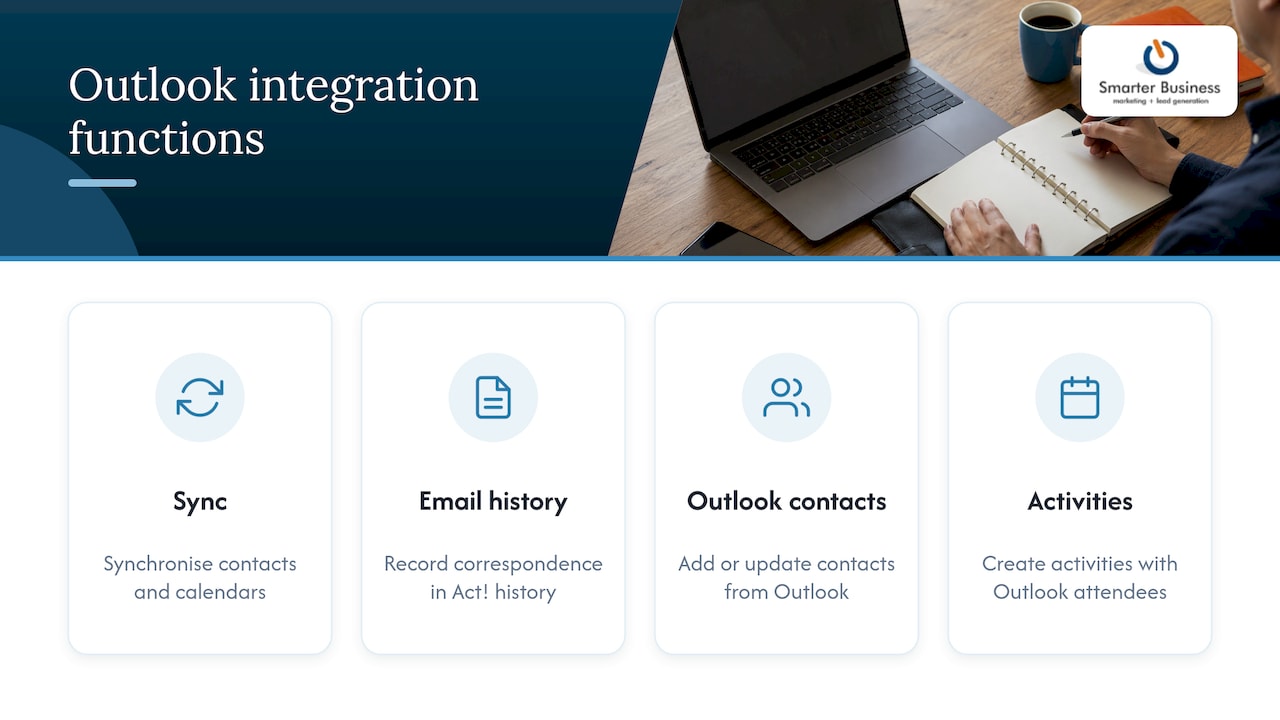
According to Act!’s Outlook integration page, you can synchronise contacts and calendars, record email correspondence in Act! history, add or update contacts from Outlook, and create activities with attendees from Outlook. That means the quote you emailed in March is sitting on the customer record in November, instead of lurking in someone’s sent folder like a chocolate teapot of good intentions.
Which versions and apps are supported
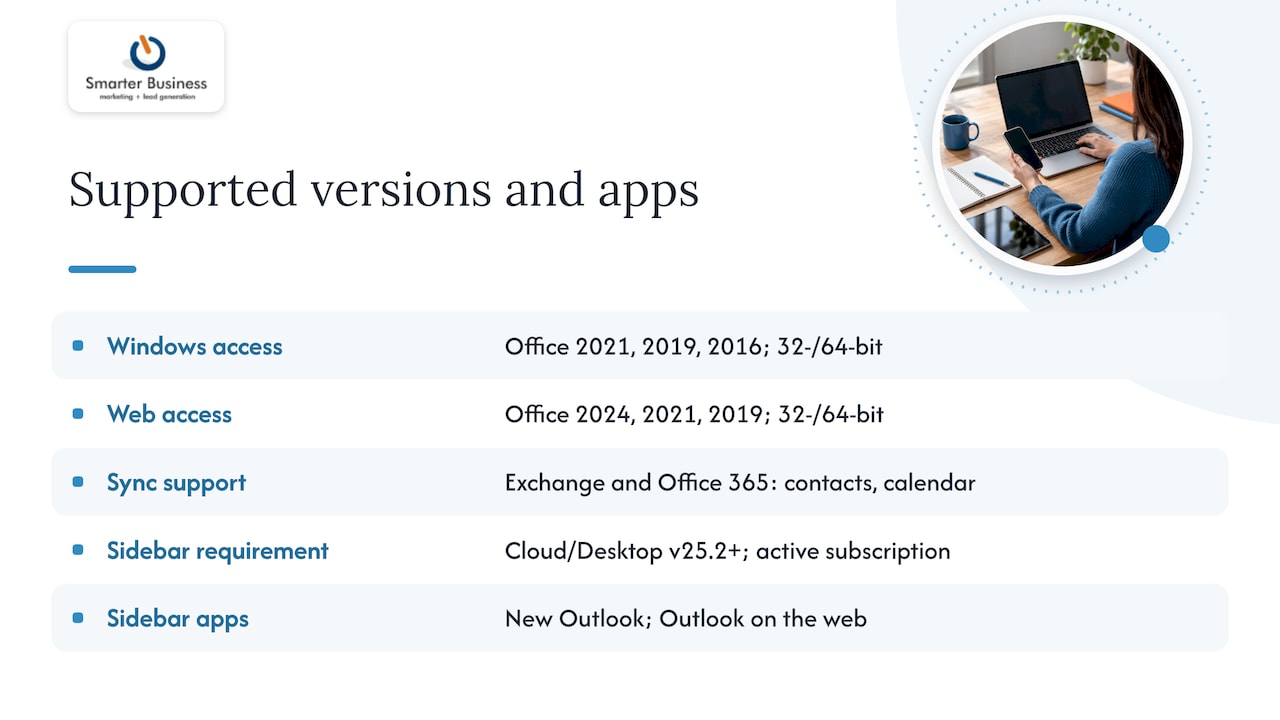
Act!’s system requirements for Premium v28 list Office 2021, 2019 and 2016 for Windows access, and Office 2024, 2021 and 2019 for Web access, in 32-bit and 64-bit editions. Exchange and Office 365 are supported for contact and calendar synchronisation.
The newer Act! Sidebar for Outlook has its own conditions. It needs Act! Premium Cloud or Premium Desktop v25.2 or later, plus an active subscription. Act! says it works with the new Outlook and Outlook on the web. Per the v25.2 announcement, it ships in the Premium v25.2 installation package and is also available to Premium Cloud users.
If you use the older Outlook on the web route, Act! points you to Act! Premium Contact Link rather than the Sidebar.
Setting it up
The path depends on your product, per Act!:
- Premium Cloud: go to Tools > Preferences > Email and follow the prompts.
- Premium Desktop v25.2: go to Tools > Preferences > Email & Outlook Sync and follow the prompts.
- Pick your provider and enter your email address.
- Choose which services to connect: email, contacts, calendar.
- Sign in, then check that imported calendar events and contacts look right inside Act!. Act!’s quick-start guide describes this general sequence.
For a fuller checklist written for Irish teams, see our Act! Outlook setup checklist.
How email recording behaves
Act!’s Cloud email-recording guide says setup offers a one-time sync of between 0 and 12 months of past email, sent and received. A message lands in the History tab of a contact when the address matches that contact’s primary email address.
The practical lesson: keep primary email addresses tidy. A contact with the wrong address is a letter delivered to the wrong house.
Google Workspace instead of Microsoft 365
Running Gmail and Google Calendar? Act! Premium Web supports Google contact and calendar synchronisation and recording Gmail messages to contacts. The Act! Premium Web Administrator’s Guide says you need a Google account, authorisation for Act! to access it, and at least one earlier login to Google Calendar. It also suggests adding Google to your browser’s Trusted Sites.
One catch from Act!’s Google help: Gmail mailboxes cannot be managed inside Act! through Act! Internet Mail, and Act! cannot send through a Gmail account that way. Use the Google integration instead. For desktop users, Act!’s Google Calendar training describes two-way sync with conflict resolution and scheduled or real-time updates.
Outlook or Google: pick a lane
The same administrator guide recommends syncing contacts and calendars with either Outlook or Google, not both, because both together can create duplicate data. It is the whack-a-mole of CRM: squash one duplicate and two more pop up.
| Your setup | Integration route | Watch out for |
|---|---|---|
| Microsoft 365 with Outlook | Email, contact and calendar sync in Preferences | Pick Outlook as the single sync source |
| Microsoft 365, new Outlook or Outlook on the web | Act! Sidebar (Premium Cloud or Desktop v25.2+) | Older web route uses Premium Contact Link |
| Google Workspace | Google integration in Act! Premium Web | Do not also sync with Outlook |
When it misbehaves
Act!’s troubleshooting page covers the usual suspects: empty email-system lists, unsupported Office versions, Outlook preferences, contact and calendar sync failures, missing toolbar icons, absent email history and registry repair for Outlook add-ins. Start by checking your Office version against the list above.
If calendars and tasks drift apart across several tools, a single clear sync rule helps. This calendar and task sync approach shows how one rule can stop things going out of step.
Our view on getting it right
We see the same pattern across Irish SMEs. The integration is rarely the hard part. The hard part is deciding who owns the contact record, which mailbox feeds the history, and what your team calls things.
That is why we start with how your business actually works, then configure Act! to match your workflows, terminology, permissions and reports. A clean Outlook or Google setup on day one saves months of tidying later.
As a certified Act! consultancy, we would rather your team trusted the system than quietly went back to spreadsheets.
Patrick Lennon
Get it set up properly
We configure Act! to fit your workflows, including the Microsoft 365 or Google connection, and train your team to use it. Act! Premium Cloud is listed at €30 per month, Premium Desktop at €37.50 per month, and Premium Cloud with Desktop Sync at €39 per month on our Premium pricing page.

Want a hand? Talk to our certified Act! consultants or browse our CRM training and services.
FAQ
Does Act! work with Microsoft 365?
Yes. Act! says its Outlook integration works with Microsoft 365, Exchange, Outlook and Outlook.com, as well as IMAP and POP servers. It needs an active Act! Premium subscription.
Does Act! work with the new Outlook?
Act! says Sidebar works with the new Outlook experience and Outlook on the web. It requires Premium Cloud or Premium Desktop v25.2 or later.
Can I use Outlook and Google Workspace together?
Act! recommends syncing contacts and calendars with one, not both, because both can create duplicate data. Choose the one your team lives in.
How much past email can Act! Cloud import?
Act!’s guide says setup offers a one-time sync of between 0 and 12 months of past email. Sent and received messages can both be included.
Sources
- CRM Outlook Integration | Act!
- System requirements | Act!
- Act! Premium v25.2: Introducing Act! Sidebar for Outlook
- Act! Trial Quick Start Guide
- Recording emails into Act! Cloud automatically
- Act! Premium Web Administrator’s Guide v27
- Google and Gmail integration preferences | Act!
- Synchronizing with Google Calendar (Desktop) | Act!
- Troubleshooting Act and Outlook Integration | Act!
- One Rule to Fix Calendar and Task Sync