You have 0 items in your cart
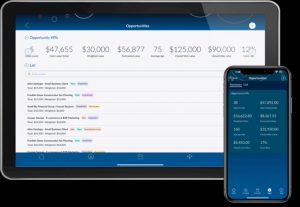
Yes, Act! has a native mobile app, called Act! Mobile (with Act! Companion as the legacy alternative), built for iOS and Android. It comes included for active Act! Cloud subscribers, and its whole reason for existing is simple: it gives field teams live, real-time access to contacts, activities, and opportunities without waiting to get back to a desk.
TL;DR:
Limiting mobile contact views to essential fields and verifying scanner field mappings significantly improves user adoption and reduces duplicate records.
Proper setup requires enabling Web API permissions for managers and standard users, with online connectivity essential for most app functions.
Building lightweight activity templates and adjusting sync preferences align the app’s use with team workflows, boosting daily engagement.
Frequent updates focus on contact import accuracy and proximity search performance, but version mismatches can cause missing data or features.
A tailored configuration, staff training, and ongoing support are key to maximizing Act! Mobile’s benefits within a sales team.
Table of Contents
-
What Act! Mobile does: core features that matter on the road
-
What Act! Mobile isn’t built for, and how to avoid common mistakes
-
Smarter Business perspective: when a consultant actually pays for itself
What Act! Mobile does: core features that matter on the road
Most CRM apps promise the world and deliver a watered-down contact list with a search bar bolted on. Act! Mobile is more honest about its job. It takes the tasks salespeople actually do between meetings, calling a lead back, checking tomorrow’s schedule, logging a site visit, and makes them fast enough to do from a car park.
The contacts module lets you search, create, and edit records on the spot, then call, text, or email straight from that record. Recent and recently edited lists mean you’re not hunting through the whole database for the person you just spoke to twenty minutes ago.
The calendar and activities side gives you daily, weekly, and monthly views, with the ability to create or edit activities and set reminders so nothing falls through the cracks between the office and the road.
For pipeline visibility, the opportunities tab allows quick edits alongside a metrics dashboard, so a manager can glance at deal stages without opening a laptop. The Act! Mobile app also includes a business card scanner that imports leads with field mapping, and a proximity search feature with map and satellite views plus a radius slider, handy for spotting nearby clients between appointments. A Home tab ties it together with a snapshot of today’s activities, recent contacts, and open opportunities.
-
Live contact editing with call, text, and email shortcuts
-
Calendar sync across daily, weekly, and monthly views
-
Opportunity dashboard for on-the-go pipeline checks
-
Business card scanning with field mapping
-
Proximity search with adjustable radius and satellite view
-
Home tab summary of daily activity
According to Act!’s own product documentation, these capabilities are built specifically for Act! Cloud users, which means the mobile experience isn’t a stripped-down afterthought bolted onto the desktop software. It’s designed as its own workflow.
How to set up Act! Mobile on your device
Getting the app installed is the easy part. Getting it talking to the right database is where people occasionally trip over their own shoelaces.
-
Download the correct app from the App Store or Google Play, searching for “Act! Mobile” specifically. There are unrelated apps simply called “ACT” that have nothing to do with your CRM, so check the developer name before you install.
-
If you’re on Act! Cloud, select “Use my Act! login.” No server address is needed. Your standard credentials do the job.
-
If you’re on a server-hosted database, you’ll need the Web API enabled, along with your server address and database name to hand.
-
Check permissions before you start. Administrators get default mobile access, but Managers and Standard users need explicit Web API permission granted by the Administrator first, according to Act!’s setup guidance.
-
Confirm device compatibility. The app runs on current iOS and Android releases; very old operating systems may not be supported.
Pro Tip: If a team member logs in and sees a blank dashboard instead of their contacts, the cause is almost always missing Web API permission, not a broken app. Check with the Administrator before assuming something’s gone wrong technically.
The app expects an active connection for most functions, so treat it as an online-first tool rather than a full offline database.
Configuring your database so mobile actually earns its keep
Here’s the bit most businesses skip, and then wonder why the mobile app feels clunky. Act! Mobile is only as good as the database feeding it. Hand a field rep a record with forty visible fields and you’ve built a digital haystack, not a tool.
-
Limit visible fields on mobile record views to the handful your team genuinely needs in the field, and give them short, clear labels
-
Verify and map business card scanner fields the first time you use it, since mismapped names and phone numbers create duplicate records fast
-
Build lightweight activity templates for repeatable tasks like “follow-up call” or “site visit” so reps aren’t typing the same notes structure from scratch every time
-
Set sync and notification preferences that match how often your team actually checks their phone, not how often head office wants updates
-
Run a short weekly governance check on mobile-entered data to catch typos and duplicates before they spread
Pro Tip: Consultants at Smarter Business often find that trimming mobile field views from thirty-plus fields to under ten is the single change that makes reps actually use the app daily instead of reverting to notes on their phone.
What Act! Mobile isn’t built for, and how to avoid common mistakes
Act! Mobile is a scalpel, not a Swiss Army knife. It’s brilliant for quick entries and contact capture, hopeless for deep analytics, large bulk edits, or building a detailed marketing campaign, those stay firmly desktop tasks, a point echoed in independent software review coverage.
Most mobile headaches trace back to the same handful of causes:
-
Scanner imports left unchecked, creating duplicate or mismatched contact fields
-
Inconsistent field use across the sales team, making reports unreliable
-
Missing Web API permissions blocking access for Managers or Standard users
-
Weak passwords or shared logins undermining basic account security
The fix isn’t complicated: verify scanner imports on the spot, agree on which fields matter before rollout, confirm permissions during setup, and enforce strong, unique passwords in line with your organisation’s access policy.
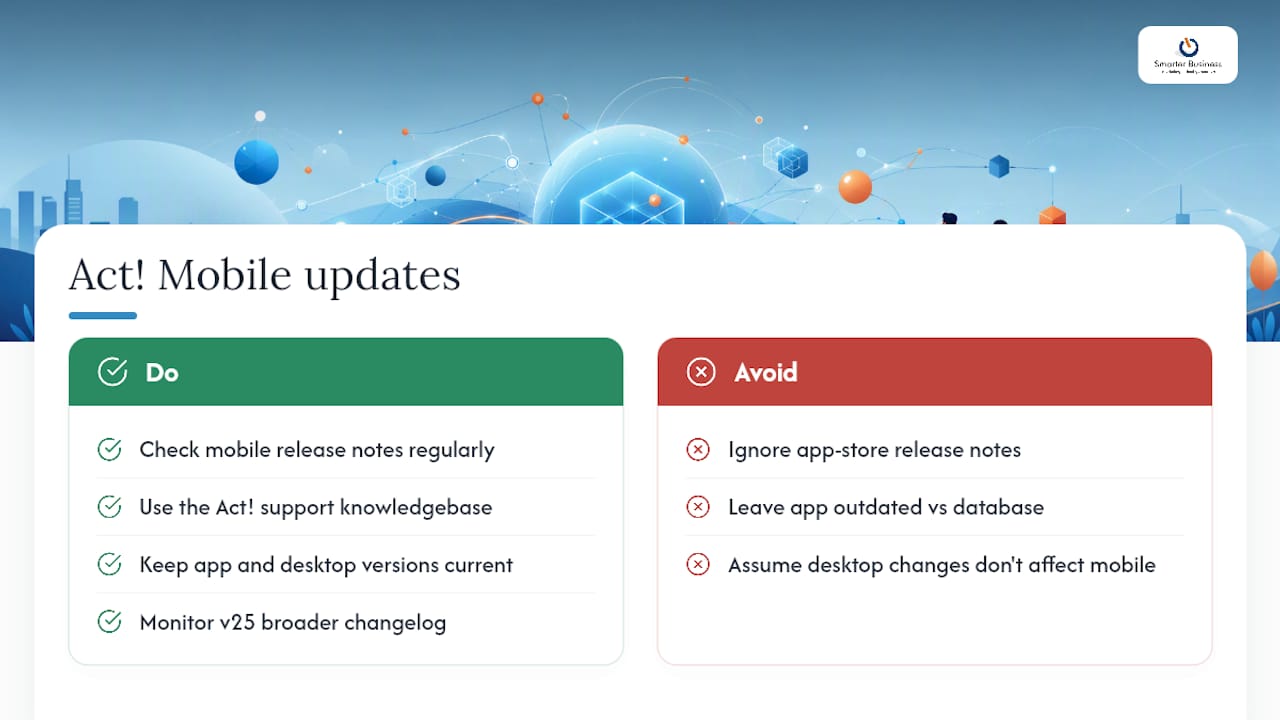
Act! Mobile updates and what’s changed recently
Act! doesn’t let the mobile app sit still, and that matters if you’re relying on it daily. Recent updates have focused on tightening up contact import and refining the proximity search interface, according to app store release notes, changes that sound small until you’re the one scanning fifteen business cards after a trade show and the mapping actually lands correctly the first time.
The official Act! support knowledgebase maintains release notes covering bug fixes and feature additions specific to the mobile app, separate from desktop version updates. Worth checking periodically, particularly if your team reports something behaving differently after an app store update.
For businesses running Act! v25, it’s worth keeping an eye on the broader release changelog, since desktop-side changes sometimes affect what data syncs through to mobile views. Version mismatches between an outdated app and a freshly updated database are a quiet but common source of “why isn’t this field showing up” support calls. Keeping both sides current avoids most of that friction entirely.
Smarter Business perspective: when a consultant actually pays for itself
Handing a sales team the Act! Mobile app and hoping for the best is a bit like giving someone a sports car and no map. The app works. What determines whether it works well is the configuration underneath it, and that’s where most SMEs quietly underinvest.
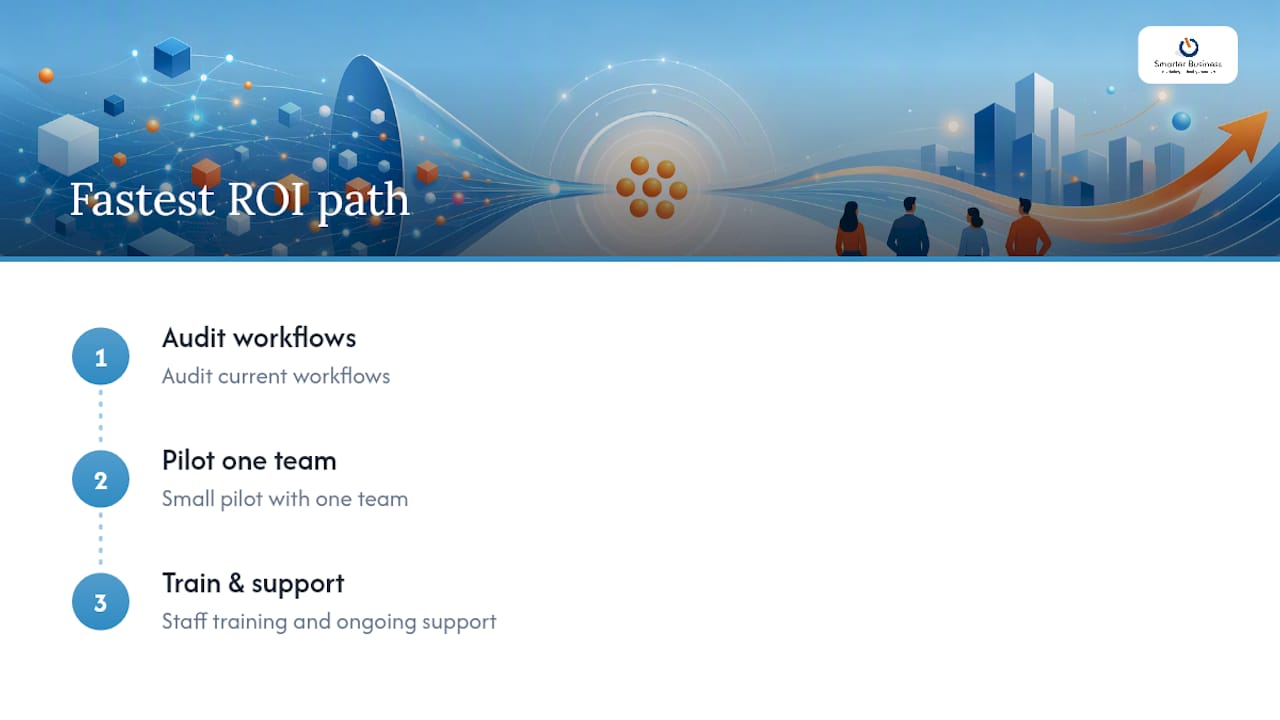
In our experience running Act! implementations across Irish SMEs, the fastest return comes from three specific tasks: trimming mobile field views to what reps actually use, building activity templates for repeatable field tasks, and mapping the business card scanner correctly before the whole team starts using it. Skip these and you get a technically functional app that nobody bothers opening after week two.
The sensible path is an audit of current workflows, a small pilot with one team, then staff training and ongoing support once the configuration is proven. Costs vary by database complexity and team size, so it’s worth checking current pricing directly rather than guessing at a figure that won’t match your setup.
— Patrick Lennon
Getting Act! Mobile properly configured for your business
Reading about business card scanning field mapping is one thing. Actually sitting down and mapping it correctly across a live database with your specific fields is another. That’s the gap Smarter Business exists to close.

Our team handles the full sequence: implementation of Act! CRM products, customisation of mobile field views and activity templates, staff training on the app itself, and ongoing support once it’s live. An engagement typically runs audit, configure, train, support, in that order, so you’re not paying for guesswork at any stage. If your business also needs bespoke mobile integrations built around Act!, our partners at WWS app development handle that side of things too.
If you’re already on Act! Cloud and want the mobile app working properly rather than just installed, get in touch through Smarter Business’s CRM training page and we’ll talk through what a sensible first step looks like for your team.